

Document Collaboration Suite - Real time collaboration
This manual explains the document collaboration suite for the CMS platform, how Site managers can set up the feature, and how the community members can create them. This page covers what the document collaboration suite is and what you can do with it.
Note: The document collaboration suite is not a part of the default CMS but can be ordered/ enabled as an add-on module with extra costs.
What is the Document Collaboration Suite - Real time collaboration?
If you are already using the Document Collaboration Suite - Files & Folders feature, part of any Open Social CMS subscription, you are already familiar with how easy it is to upload and share files within groups.
Document Collaboration Suite - Real time collaborationt brings real-time document collaboration directly into the Files & Folders module. Users can now create, upload, and co-edit documents, spreadsheets, and presentations without leaving the platform—all while keeping files secure and organized. With intuitive controls, smart permissions, and seamless editing, working together has never been easier.
How does it work?
Accessing the Feature
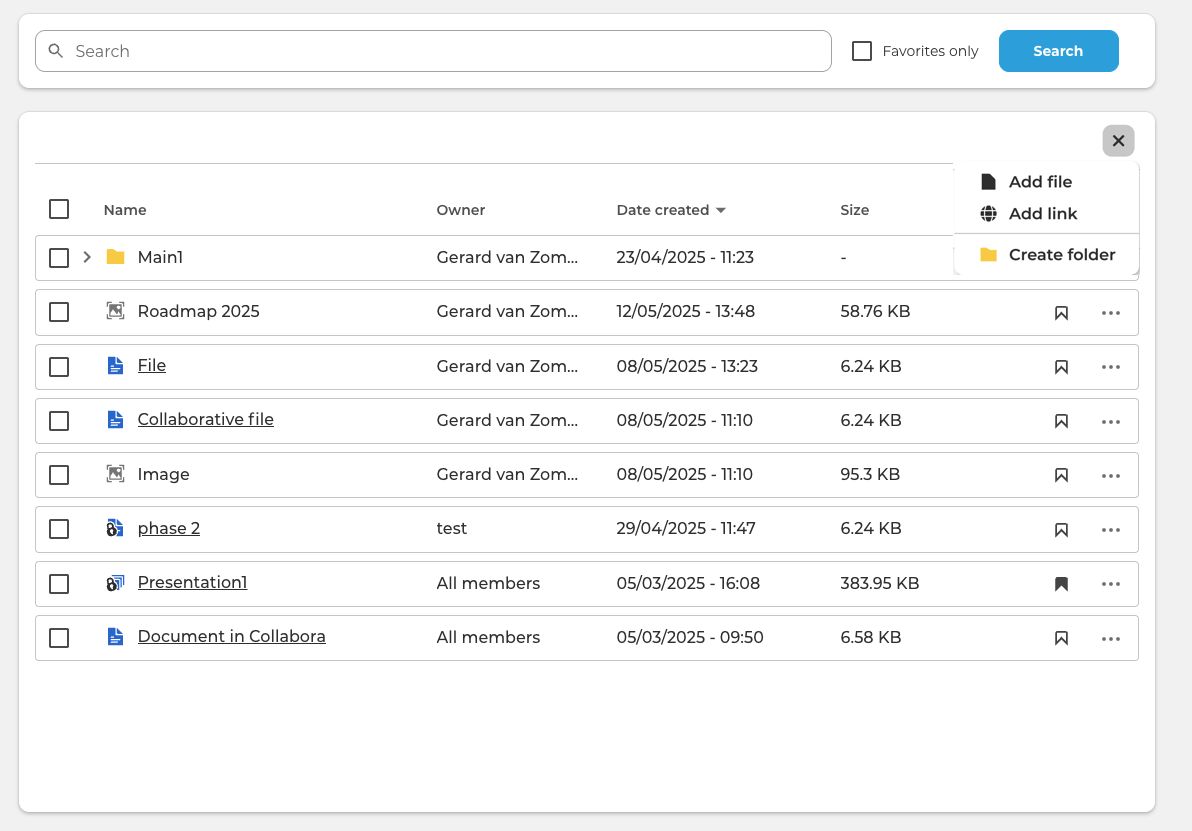
Once enabled, collaborative file features are available directly in the Files tab. Existing workflows remain unchanged, and new options are intuitively integrated.
Creating Collaborative Files
Navigate to the Files tab.
Click the "+" button.
Choose whether you want add/create:
A file
A folder
A link
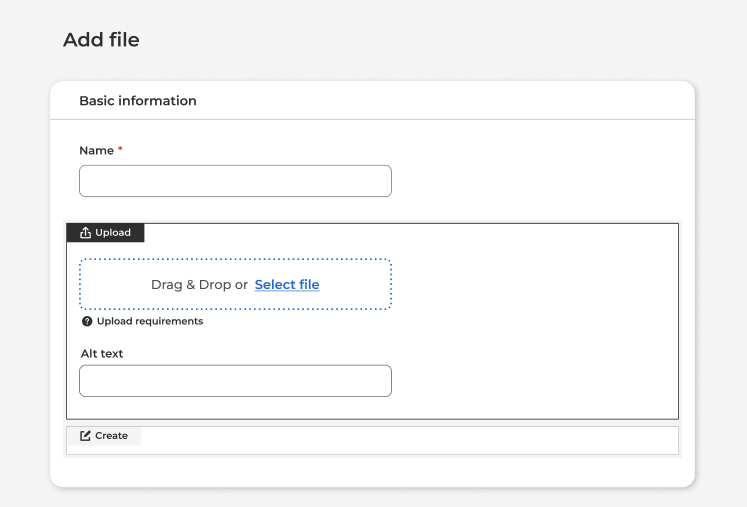
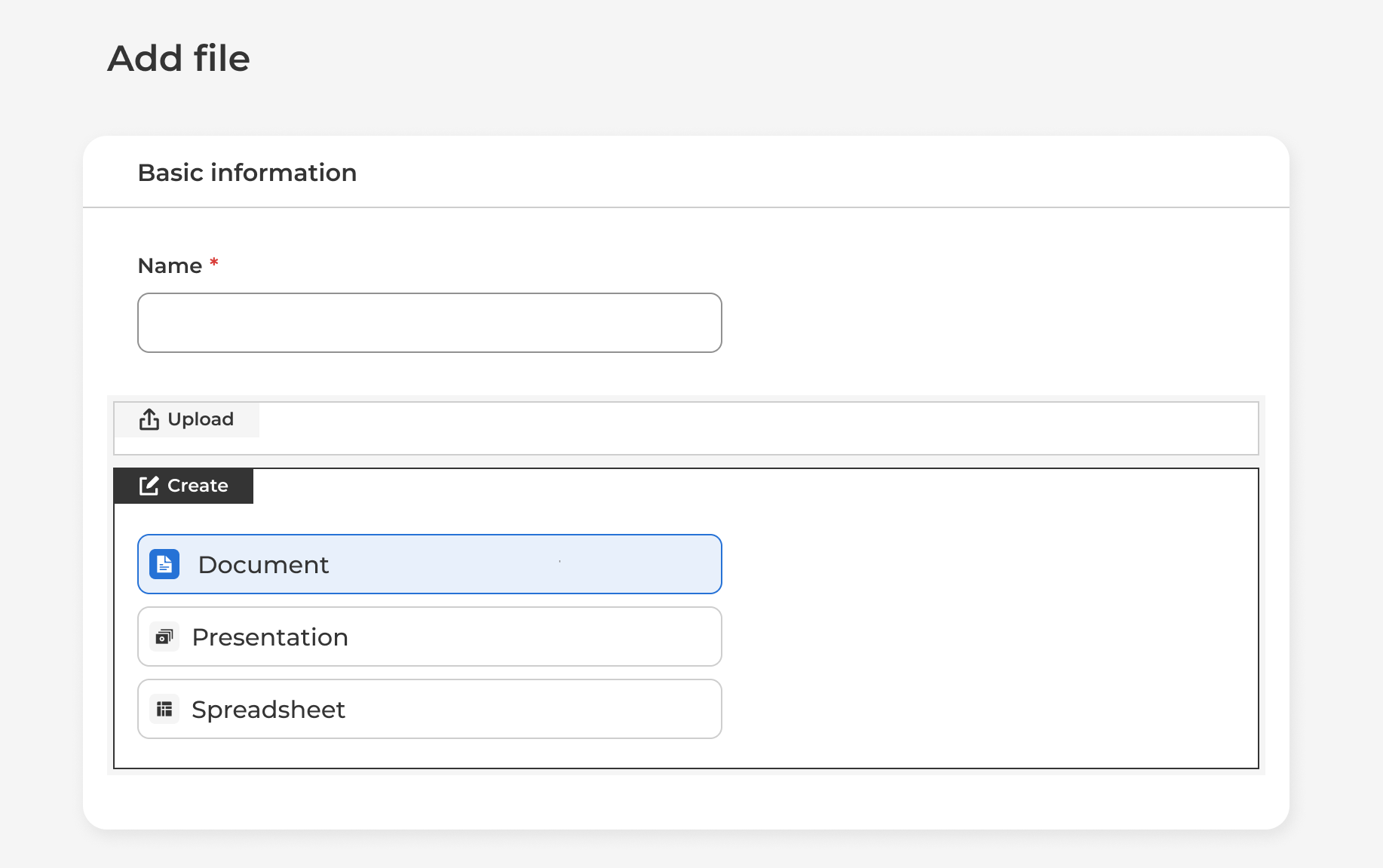
Decide whether you want to create a new file or upload an existing one.
Set the access permissions.
Click "Create" your file is instantly available for editing online in the collaboration suite.
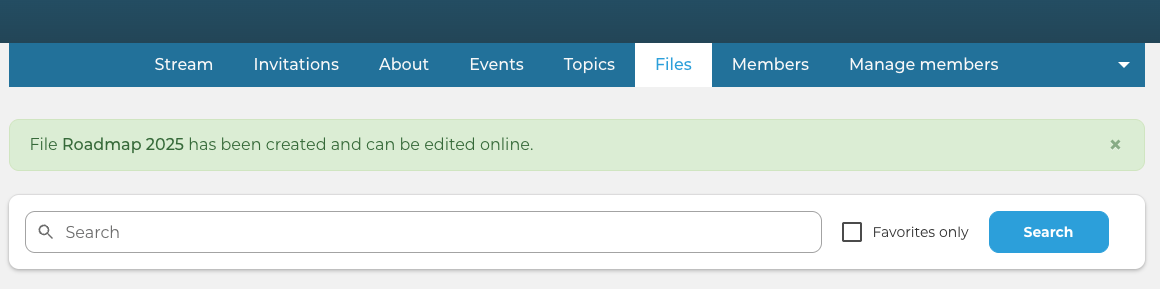
When a collaborative file is uploaded, the confirmation message link now point to the edit page in the Collaboration Suite.
Uploading Files for Collaboration
Users can upload existing files and continue working on them online:
Files supported by our collaboration tool (e.g., .docx, .xls, .pptx) are automatically created as collaborative files.
Unsupported formats (e.g., .pdf, .png) will be uploaded as regular files.
The system automatically detects the file type and handles categorization.
Managing Collaboration
Enable or Disable Collaboration
With this feature we want to allow managers to handle files that are already available on the system and that users want to collaborate on and also provide a simple way to finalize a file by making it non collaborative when necessary.
This functionality takes full advantage of the Files & Folders permissions and allows users that have the right to edit the document to convert it back and forth.
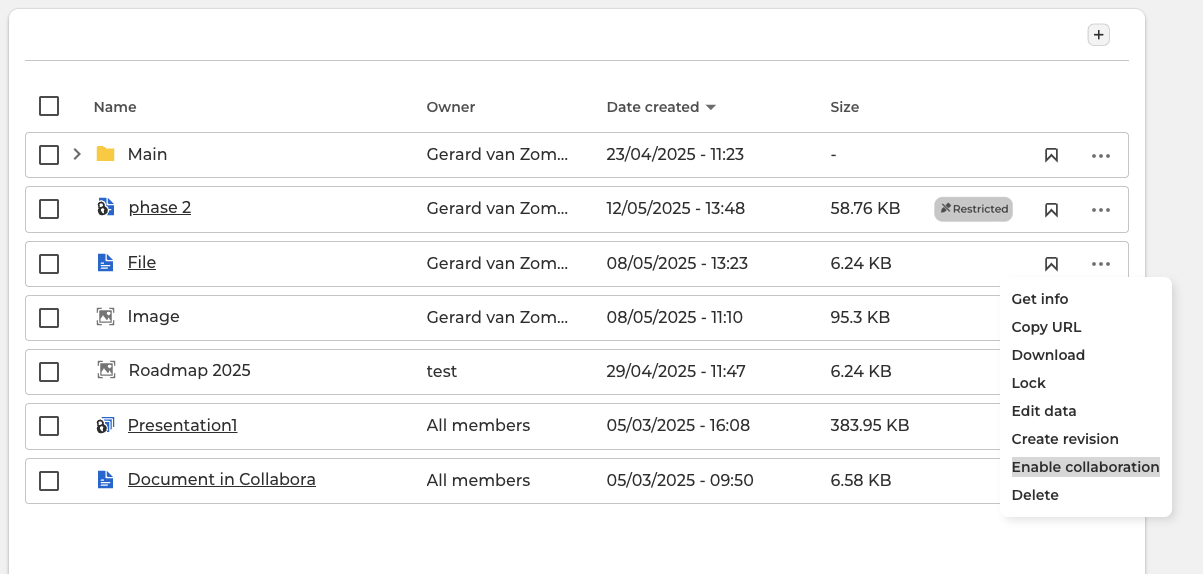
For example, if in a group we have a non collaborative .xls file and the owner wants to collaborate on it online, by clicking on the new action button "Enable collaboration" the system will convert the file into a collaborative .xls.
In the same way, if an owner wants to finalize a document and prevent online editing, this can be converted back to non collaborative by clicking on the new action button "Remove collaboration".
Every file that is compatible with our collaboration toll can be converted into a collaborative file and vice versa.
A new revision is created when a file is converted to help managers keeping track of the changes and existing revisions are maintained throughout the conversion.
File Access and Permissions
When a collaborative file is displayed in the overview, users can click on the file name to open it in our collaboration tool. The system is now automatically checking the user permissions and access control to this link and the file will be opened in view mode or edit mode, depending on the user access to the specific file.
Files respect Files & Folders permissions.
Users with Edit rights can modify files in real-time.
Users with View rights can preview content without altering it.
Permissions are checked before file access—files open in view or edit mode accordingly.
Supporting Features
Folders and Organization
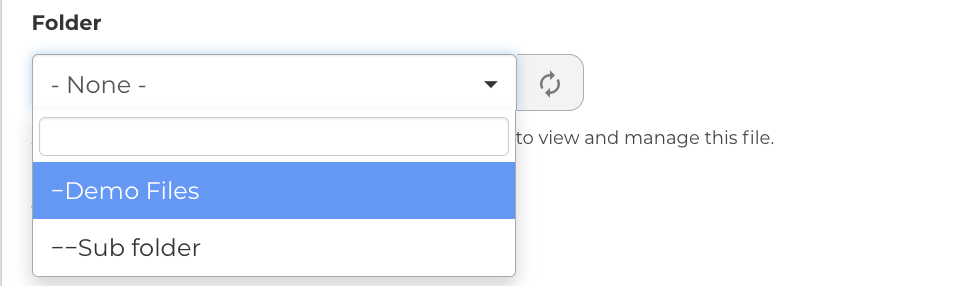
Place collaborative files in any folder or sub-folder.
Apply consistent access rules across folders.
Search and Favorites
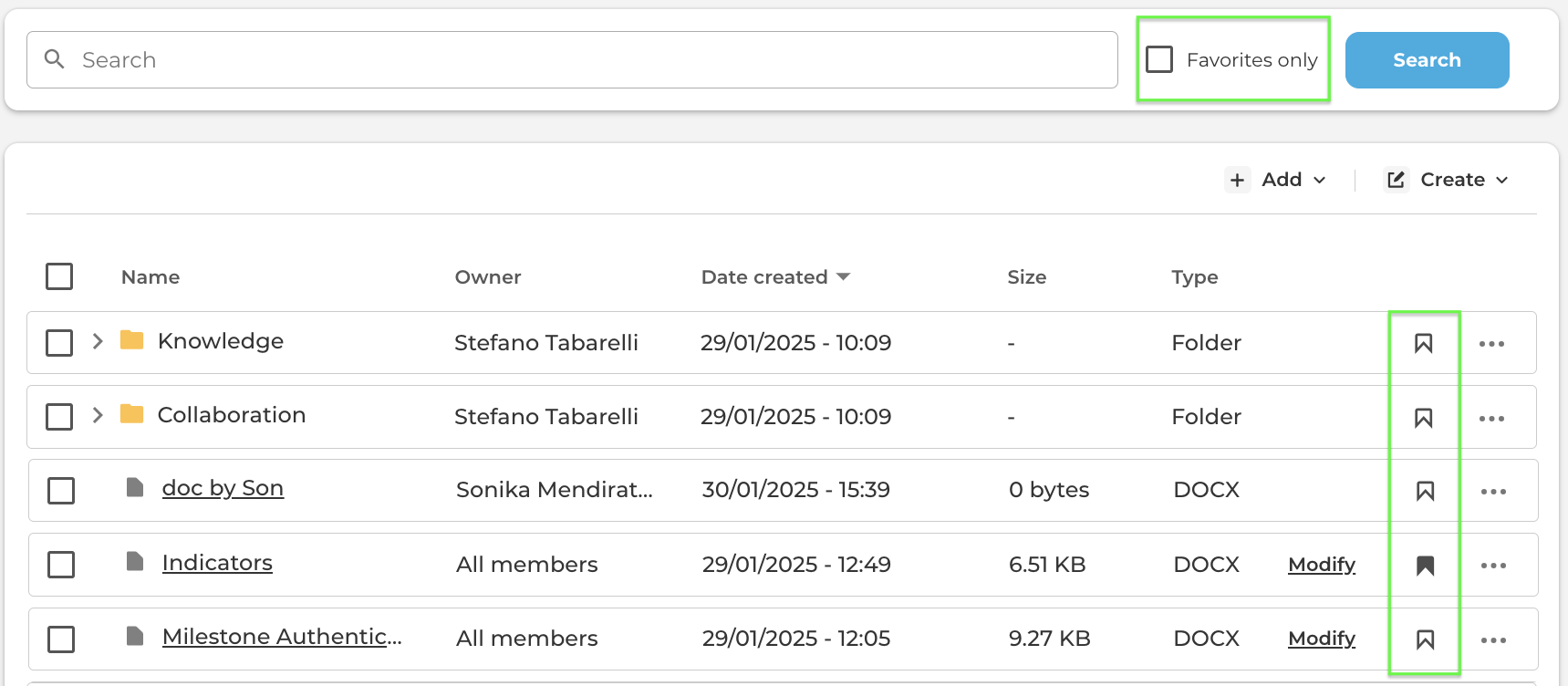
Search finds all files, collaborative or not.
Use the “Favourite” filter to mark and locate important files quickly.

File Locking
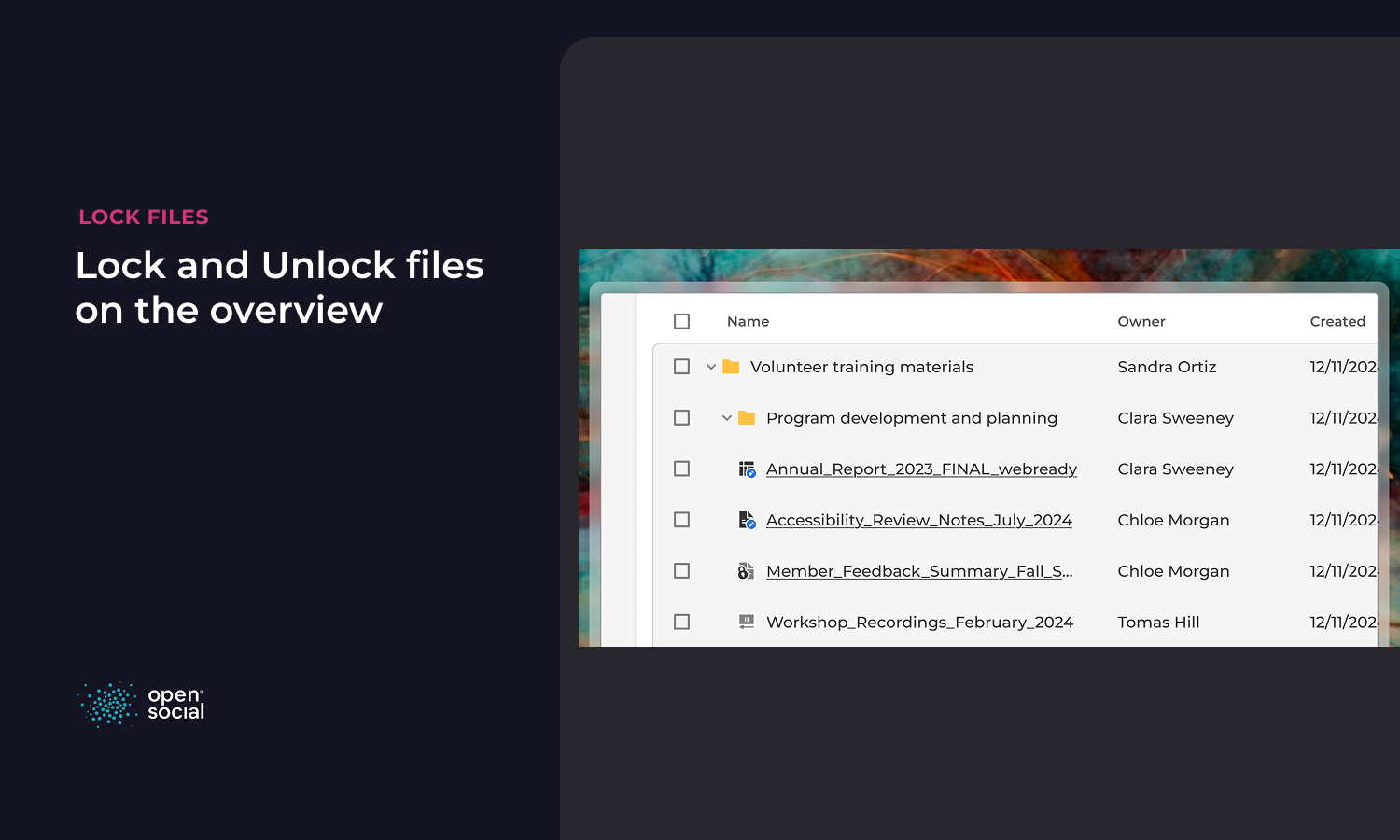
Locked files cannot be edited, online or offline.
Only owners can lock/unlock files.
Each lock/unlock action creates a new revision.
Revisions
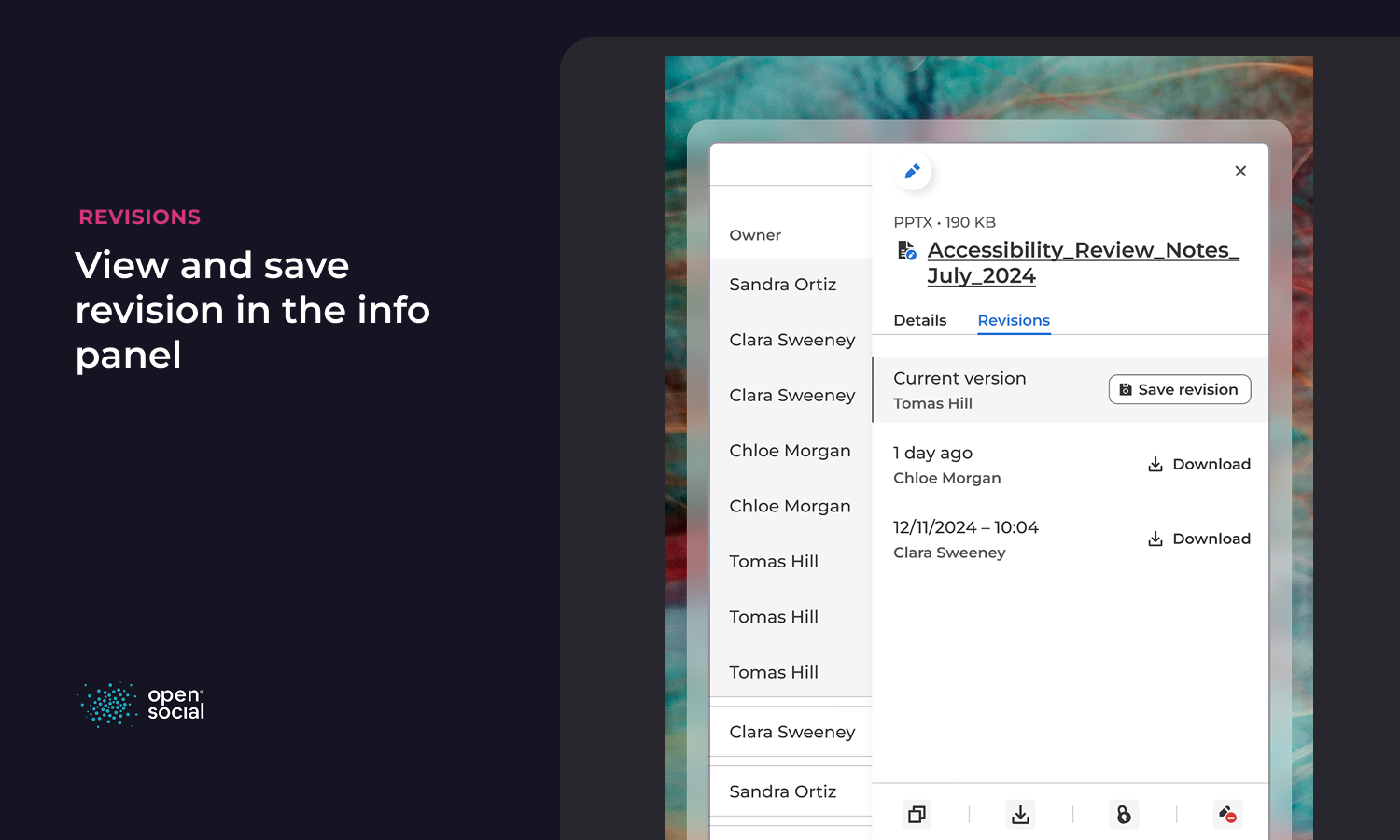
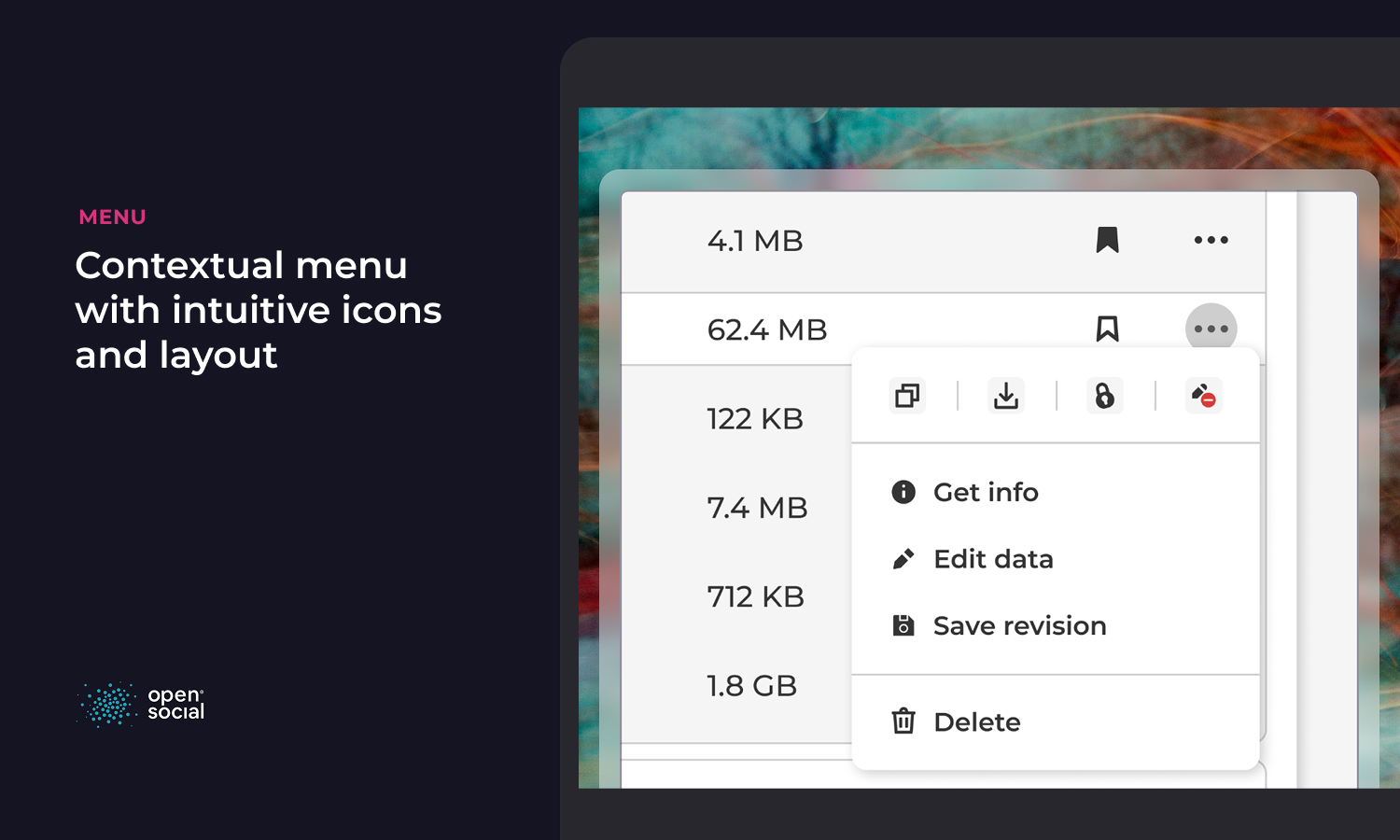
Create file revisions easily via the 3-dot menu.
Tracks changes over time for both collaborative and non-collaborative files.
Security & Privacy
All files remain stored securely on your own servers.
The integration complies fully with GDPR and data protection standards.
What's new
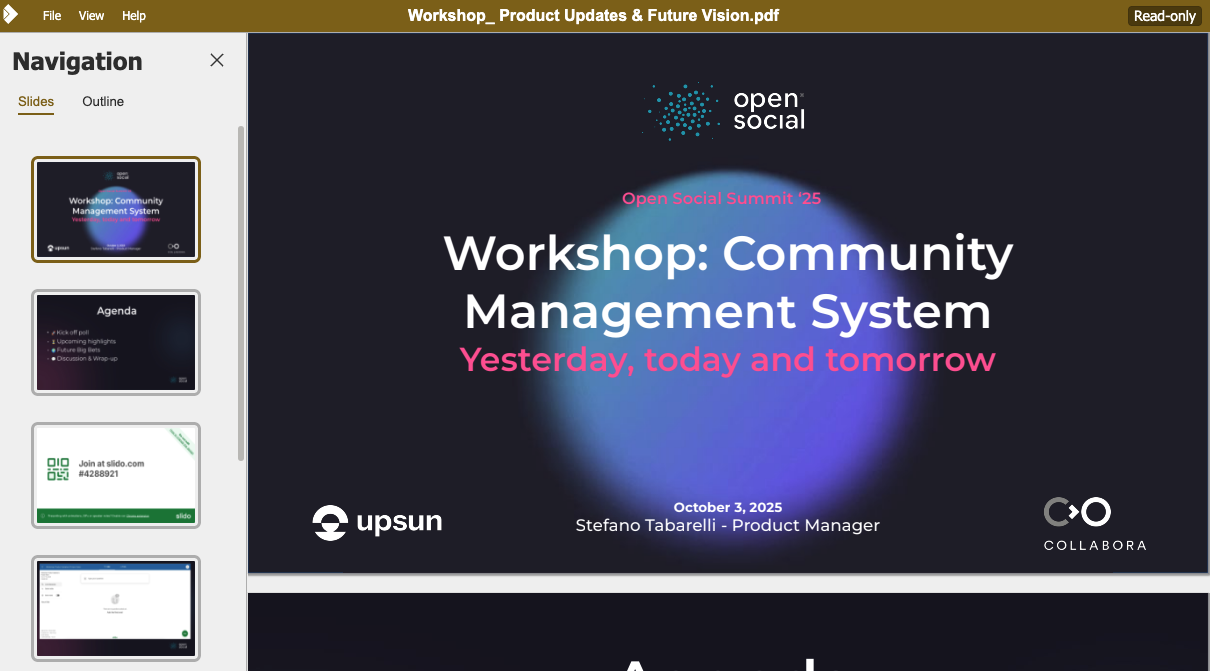
File Preview in the collaboration tool
It is now possible to open PDF and PNG files directly in the platform without the need of downloading them first. This files can be previewed in our collaboration tool by clicking on the file name in the overview
Redesigned contextual menu for better usability
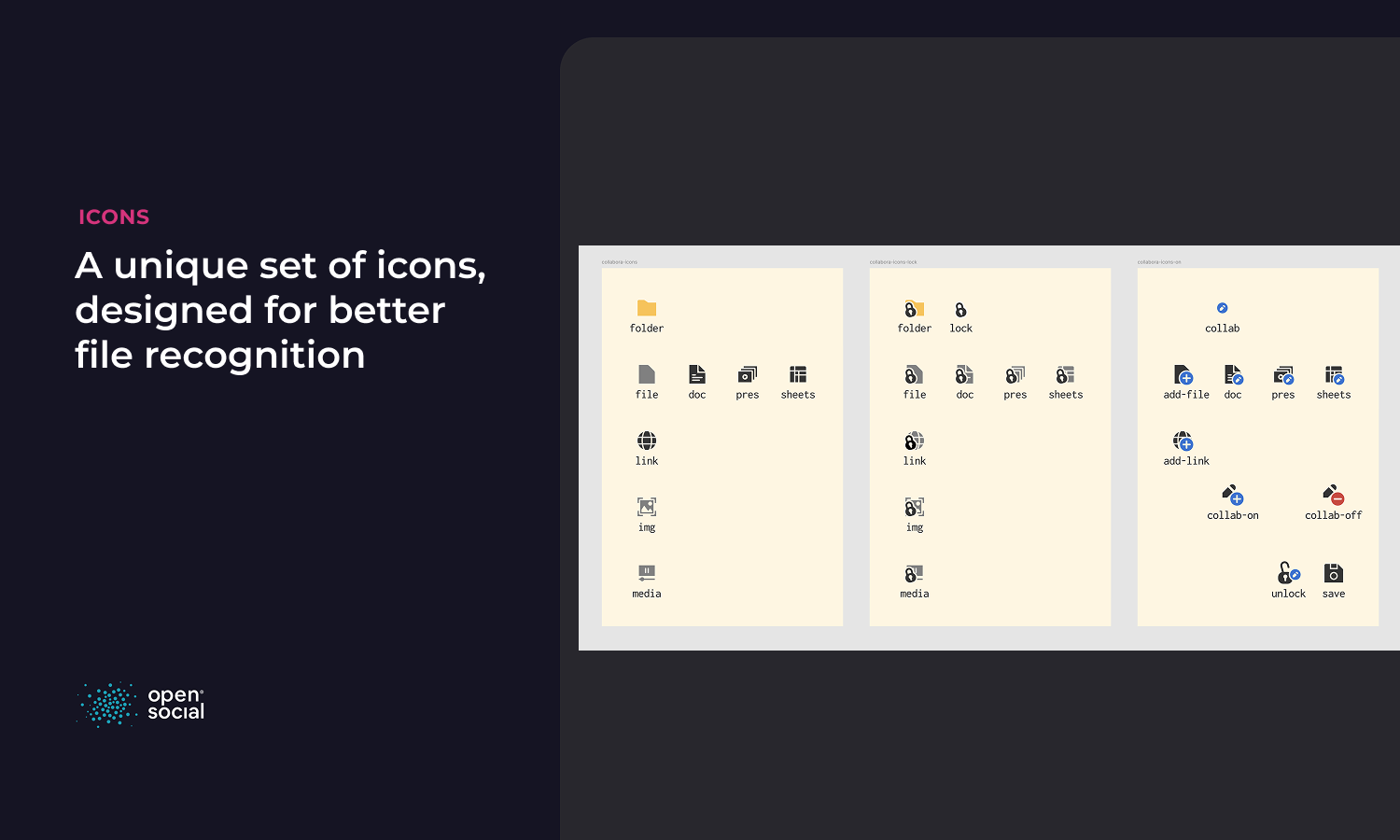
New set of unified icons across the platform
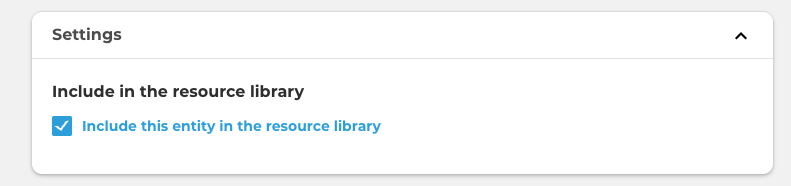
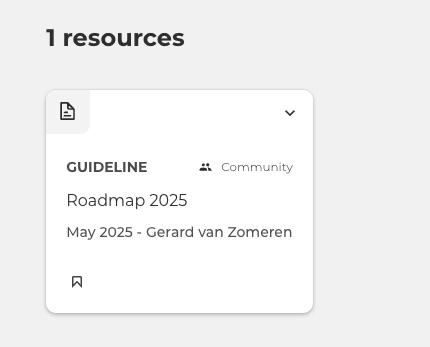
Showcase relevant files in the Resource Library.
Files can now be added to the resource library for extra visibility.
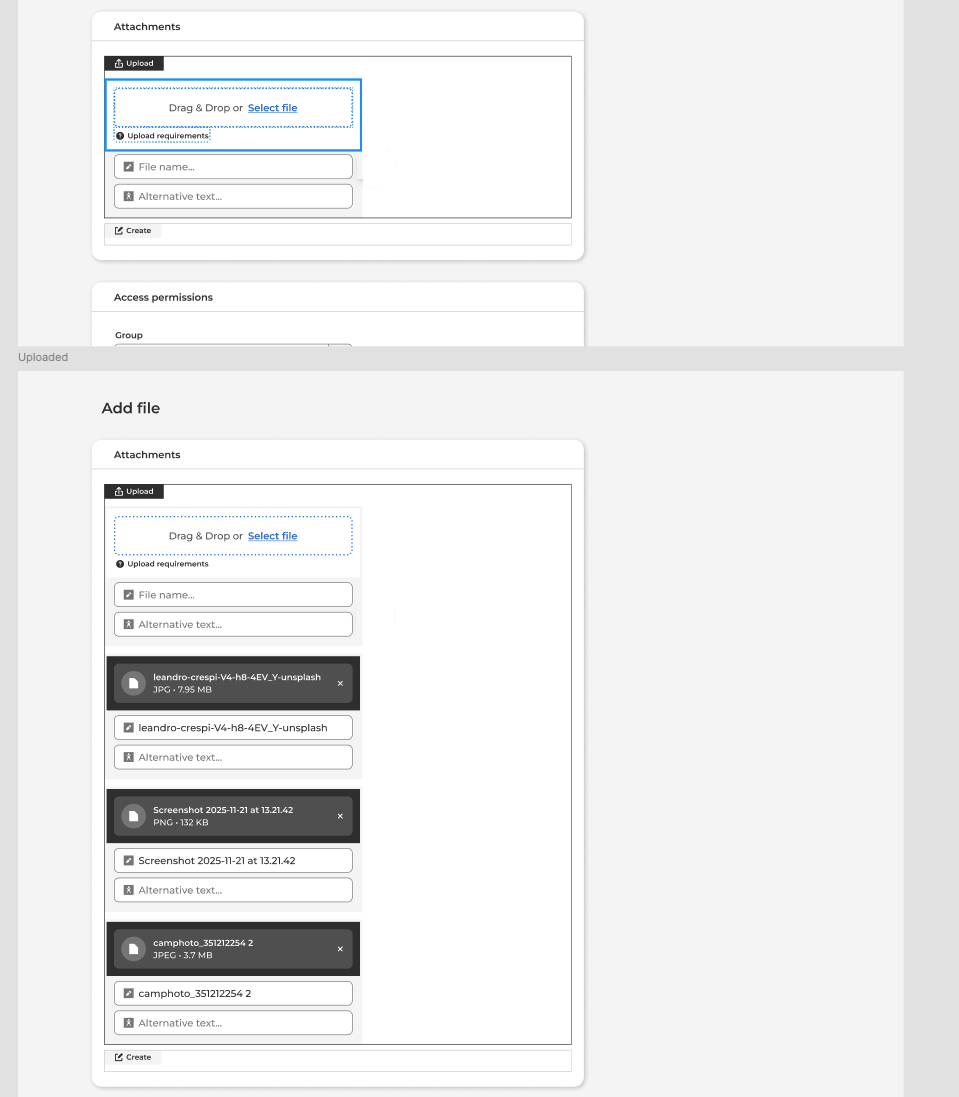
Multiple Files Upload
Select and upload multiple files in one click directly into your group
Download of folders
Improve the way you share resources with other people by downloading entire folders with one click.
Every file, link of subfolder that is available between a folder will be exported in a zip file, maintaining the structure intact.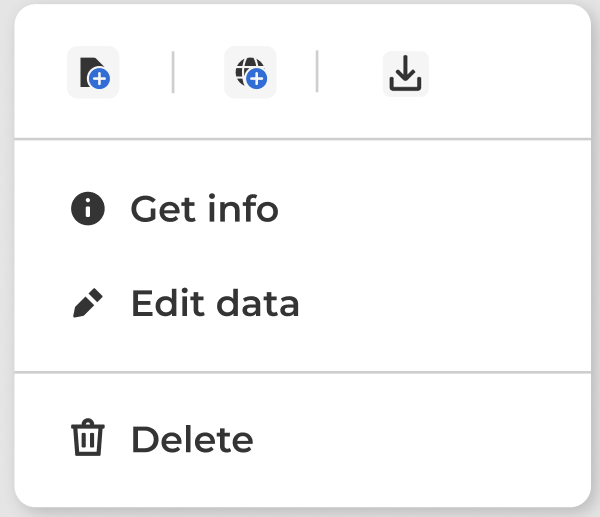
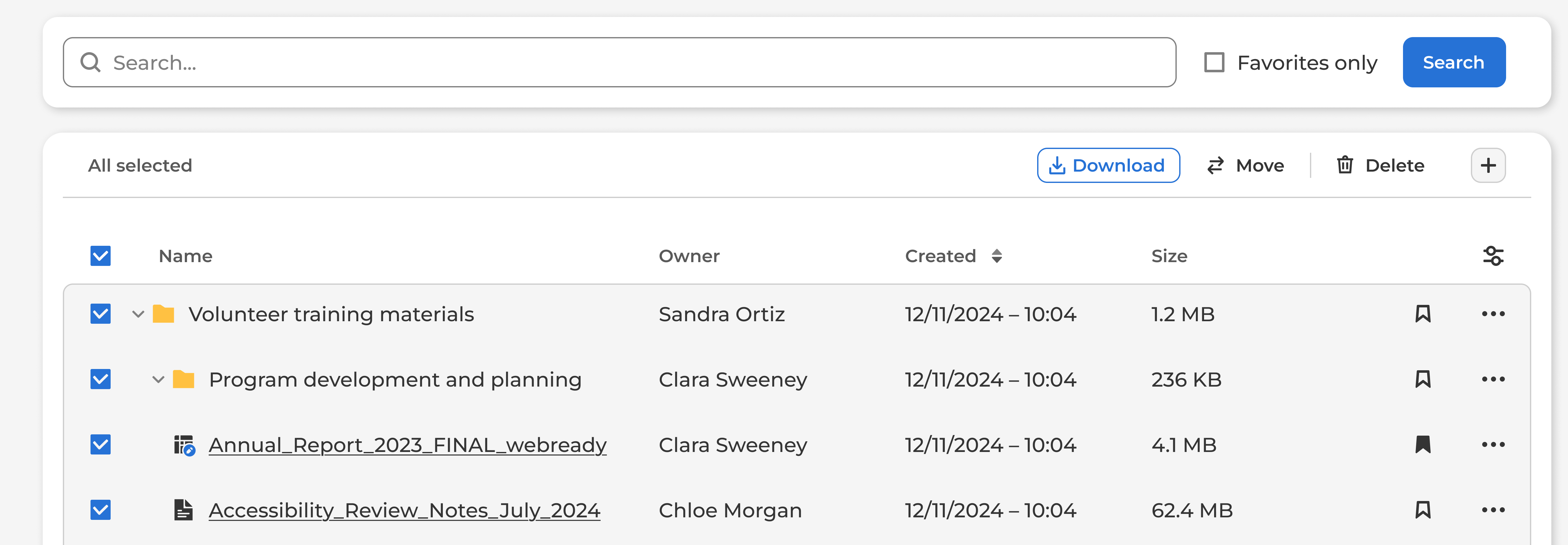
Bulk operations
- Download of multiple folders from the Files overview page
- Deleted multiple files, folders or links with one action
- Move files, links and folders from one location to another within your group
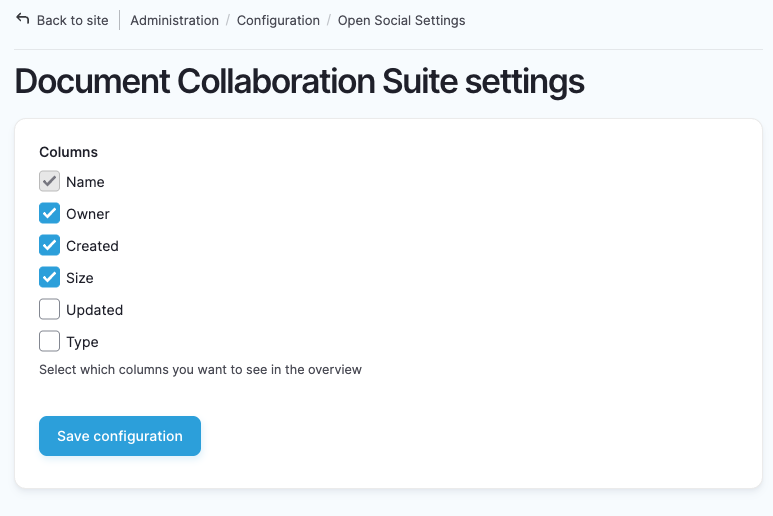
Personalize your Files overview
Site Managers can decide which information are most relevant to be displayed in the Files overview page.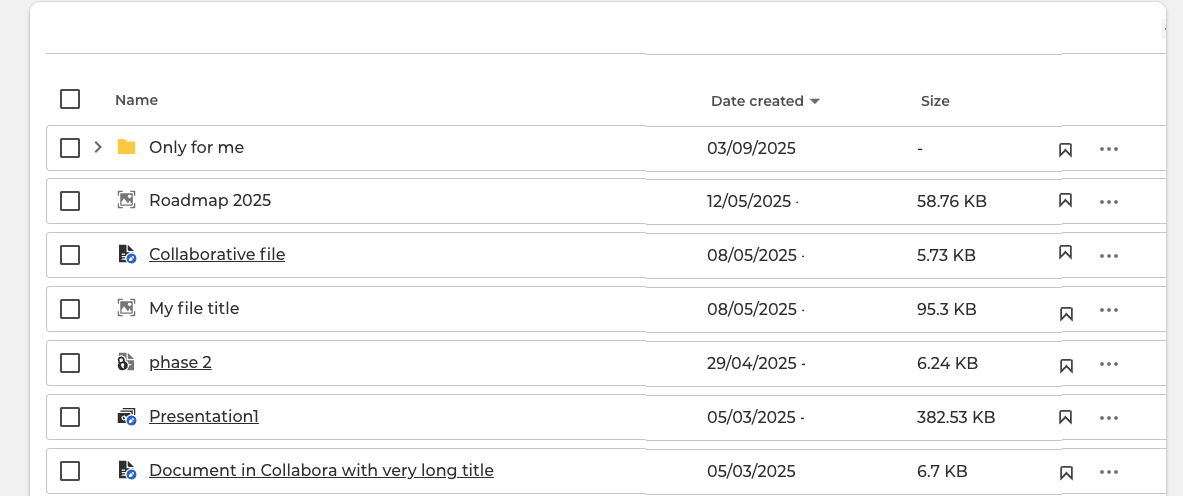
If you are interested in the feature and want a demo, please contact your CSM!