
The Document Collaboration Suite enables secure online document viewing and editing. To ensure this works smoothly a connection between your computer, the Open Social Community Collaboration Platform and the Collabora server powering the Document Collaboration Suite is needed.
This guide helps you identify and troubleshoot networking issues and helps collect the needed information for our support team to quickly address any remaining issues.
Symptoms that may indicate a blocked connection
You might see messages such as:
- The document editor or viewer is not available.

- Connection failed or the connection was closed unexpectedly.
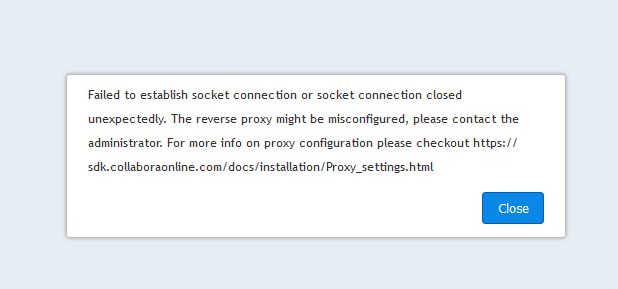
- A browser error saying the site refused the connection or could not be reached.
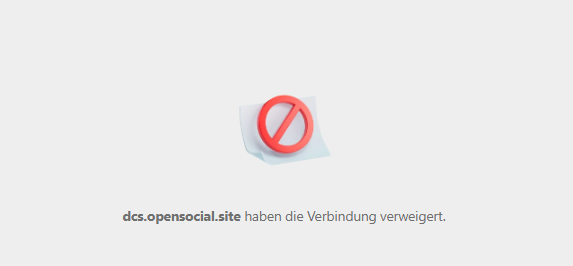
These messages do not always mean your network is blocking access, but they often appear when your connection cannot reach the Document Collaboration Suite.
Check whether you can reach the Collabora server?
- On the same network where the issue occurs, for example your office network or VPN, open a browser.
- Go to https://www.document-collaboration-suite.com.
Expected result
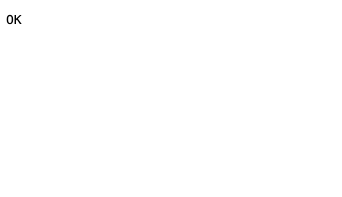
You should see a plain white page with the text OK, usually in the top left corner. This means your browser can reach the service.
 |
Other results
If you've opened https://www.document-collaboration-suite.com/ in your browser and you do not see a white page showing "OK" then it is likely that your network administrator is blocking the connection to Collabora or that there's a service interruption.
In case of a service interruption we will post a notification at https://status.getopensocial.com/.
In case of a blocked connector, contact your network administrator or organization's IT department with the following information:
The Open Social Community Collaboration Platform requires an HTTP and Websocket connection to the Collabora service hosted on https://www.document-collaboration-suite.com/.
This should help them check whether the domain is accessible and lift any blocks.
If you see a block page, an error message, a timeout, or anything other than the simple white page with OK, your network may be blocking or interfering with the connection.
What to do next
- Take a screenshot of the full browser window.
- Contact the Open Social helpdesk and share the screenshot.
Collabora is reachable but document editing doesn't work
If you've validated that the Collabora server is reachable and is not blocked on your network, but Document Collaboration is still not working as expected, please contact the Open Social helpdesk and provide the following information:
- The time at which this error occurred
- A screenshot of the problem that you're experiencing, include the full browser window
- The URL on which you are experiencing the problem
- The name and version of the browser
- Any extensions that you have installed in your browser
- What internet connection this happened on (e.g. "At Home", "At work", or "Through a VPN")
This information will help us diagnose the issue.
Getting the browser name, version, and installed extensions
In Chrome
Visit the chrome://system/ page in your browser. Expand the row labeled "extensions".
Include in your support request a screenshot of this page.
In Microsoft Edge
Visit the edge://system/ page in your browser. Expand the row labeled "extensions".
Include in your support request a screenshot of this page.
In Firefox
Visit the about:support page in your browser. See https://support.mozilla.org/en-US/kb/use-troubleshooting-information-page-fix-firefox for information on how to reach this page.
Include in your support request a screenshot of at least the "Application Basics" and "Add-ons" sections of this page.
In Safari
To get the version information: Click on "Safari" in the menu and click "About Safari".
To get the installed extensions: Click on "Safari" in the menu and click "Safari Extensions...."
Include in your support request a screenshot of both screens.