


Document Collaboration Suite - Files & Folders
This manual explains the files and folders feature for the CMS, how Site managers can set up the files and folder feature, and how the community members can create them. This page covers what files & folders is and what you can do with it.
Note 1: Document Collaboration Suite - Files & Folders is part of the default CMS so if you do not use it now ask your Customer Success Manager for a demo.
What is the Files & Folders feature?
We want to provide an easy way for users to share files and links within the platform without the needs for a 3rd party integration such as Nextcloud where users could collaborate and benefit from each others' feedbacks
In Open Social we can attach files to any entity but these files are not easily accessible nor searchable. It is not possible to have a library of content that are easily available for users within their groups. This extensions solves these problems and allows users to share and collaborate on document in an easy way, similar to what they already do with other entities.
The main use case is for intranet and corporate Websites where sharing and reading files are big part of their daily tasks but it is a feature that can help any type of community to have a more centralized and organized place for their documentation and guidelines.
How does it work?
This extension adds 3 new entities that are dependent with each other: Folders, Files and Links.
Configuration for Group Managers
As a Group Manager you can decide if Files are enabled in your group.
When one creates a group, they can decide to enable files and folders in their group.
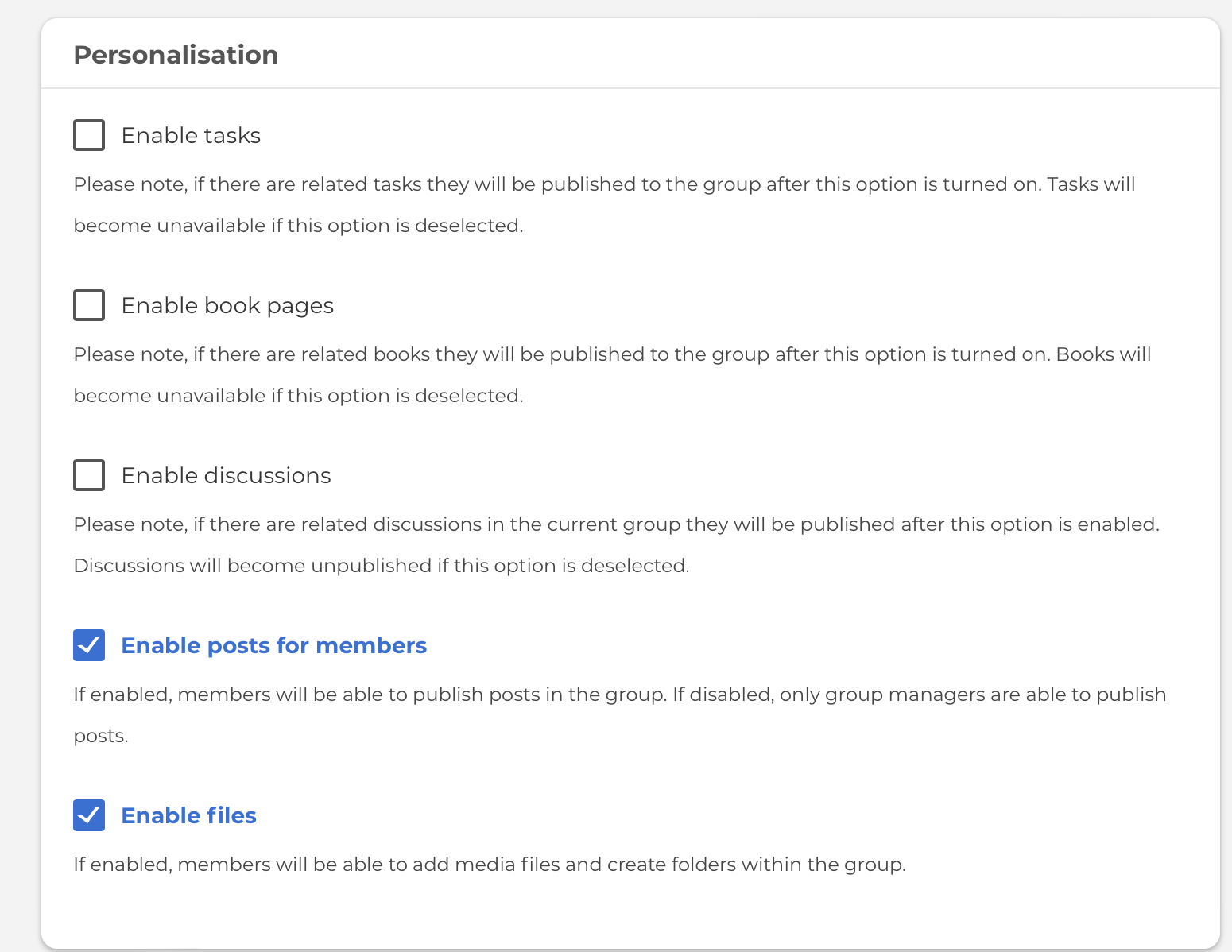
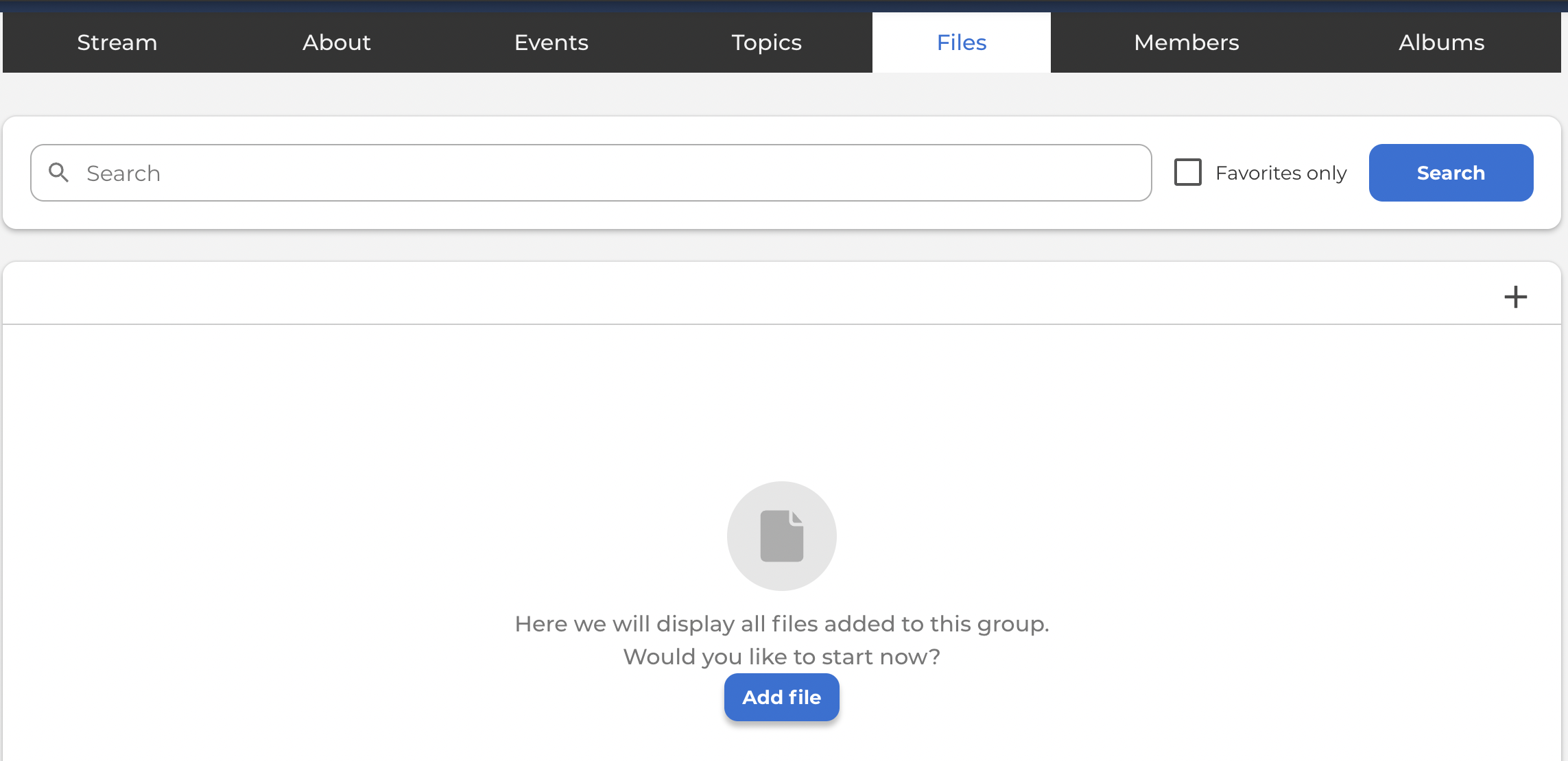
Once available, group members can see a new Files tab within the group, they can create folders in order to structure their files, they can add files and links to external resources.
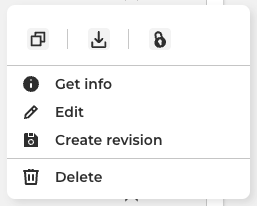
As a Group Manager, you can manage all the files, folders, and links in your group.
You have the option to get the creation information, copy the URL, download the file, lock the edit of the file, edit and delete each file, folder, and link.
Configuration as a User
You have to be a group member in order to add files, folders, or links to the group.
A user can see all details of a file, folder or link and can download any file he has access to it.
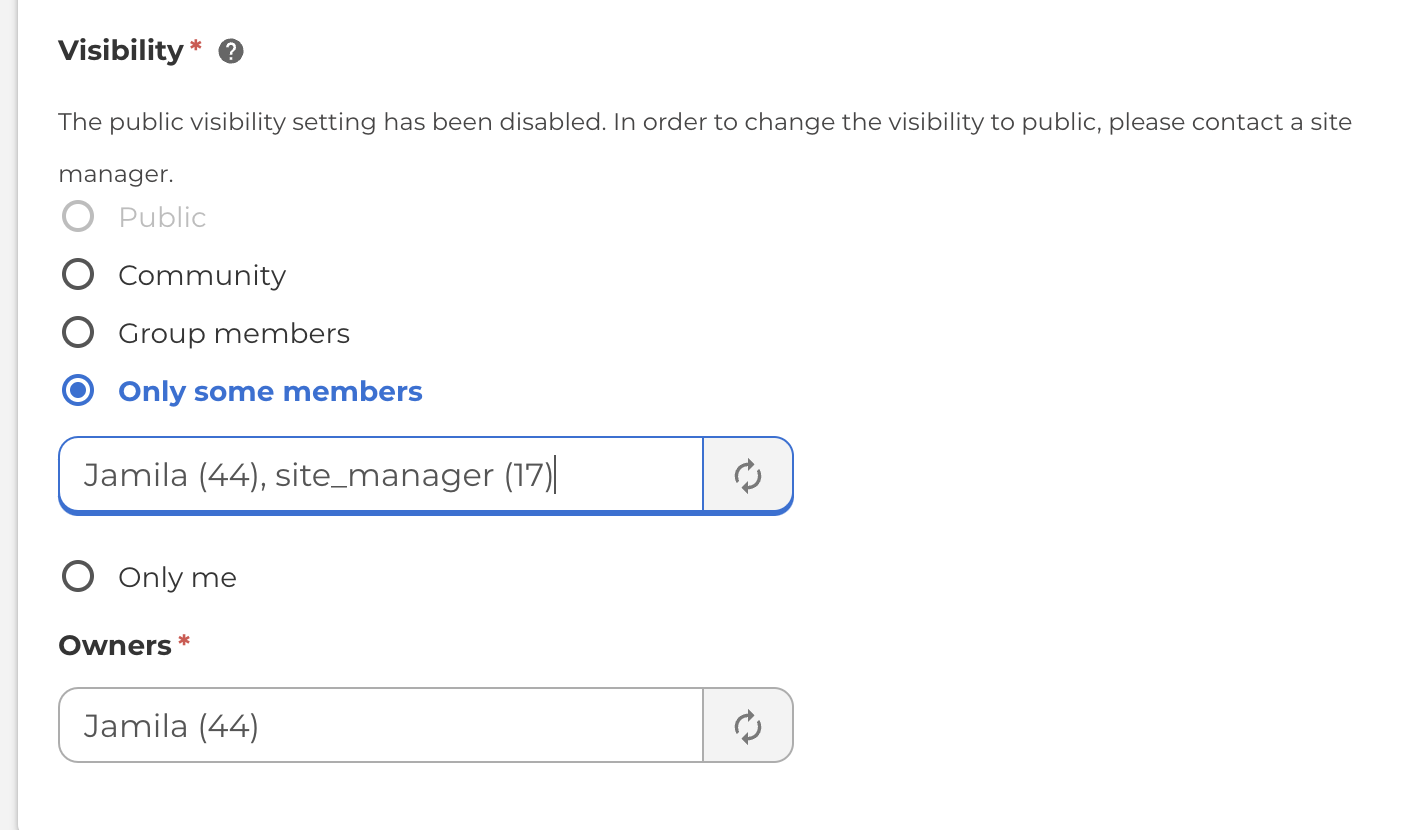
When a user create a folder they can choose some visibility options. They can even choose to have limited members of a group to only view the folder with the files and links included.
Moreover, a member of a group can mark folders, files and links as their favourites, which can easily be found in the group with the Favourite only filter.
A file can also be locked. This is a visual indication that another user is working on it and prevents other users from editing or deleting the same file. Any owner of the file can lock and unlock the file at any time. A new revision of the file is created when this action is perfrmed.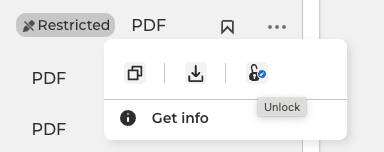
The search bar allows a user to search for any file, folder, or link within their group. This way they can easily find the information they are looking for.
Files in resource library
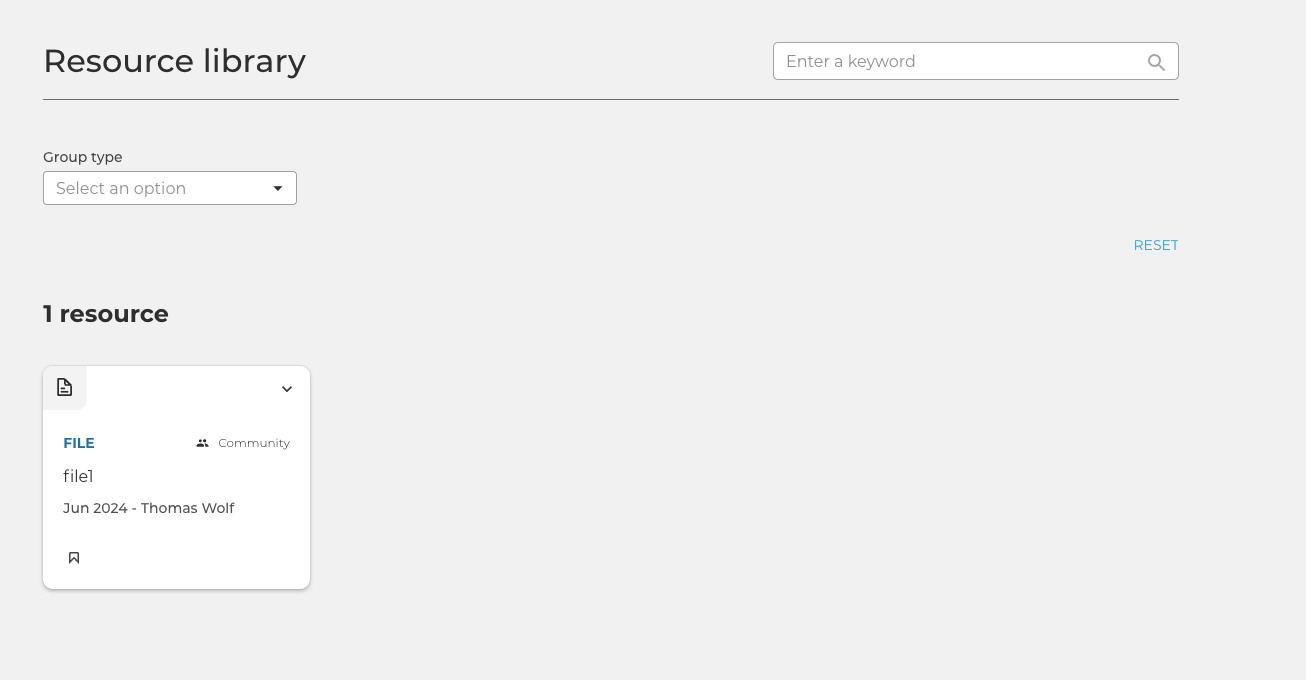
It is now possible for a Site Manager to include a file in the resource library.
A Site Manager can edit a File and check the checkbox "Include this entity in the resource library".

If a user has access to this File and navigates to the Resource library page he will be able to see the File.
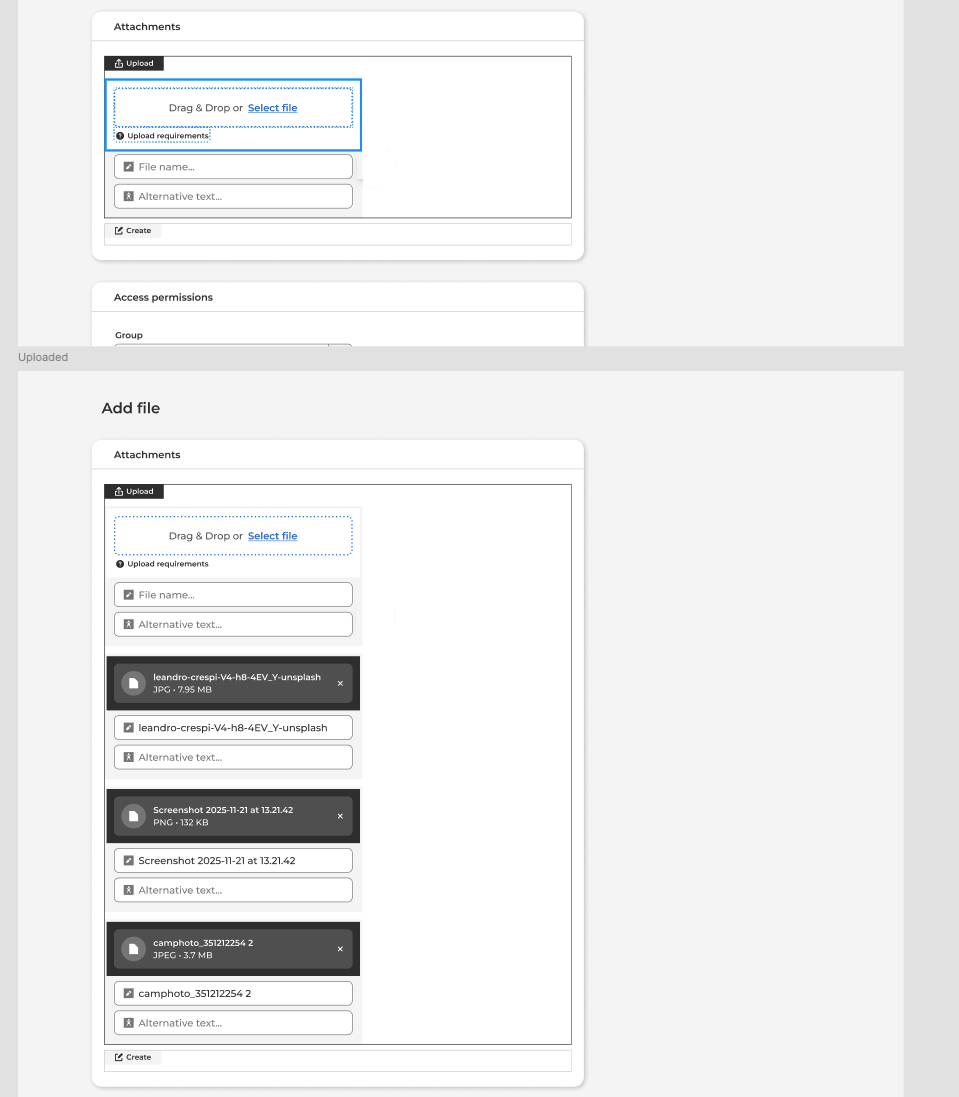
Multiple Files Upload
Select and upload multiple files in one click directly into your group
Download of folders
Improve the way you share resources with other people by downloading entire folders with one click.
Every file, link of subfolder that is available between a folder will be exported in a zip file, maintaining the structure intact.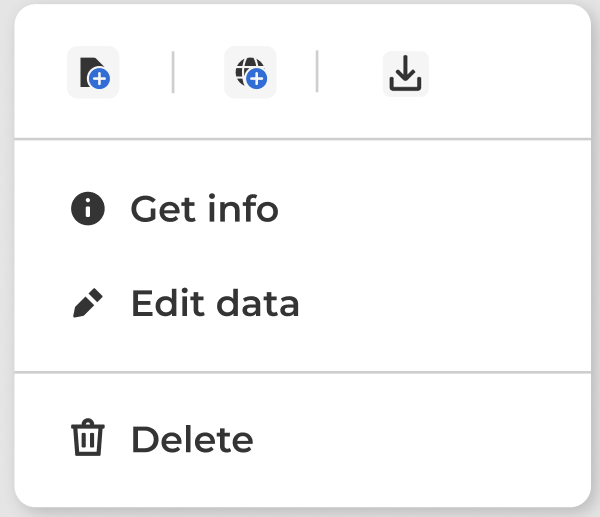
Personalize your Files overview
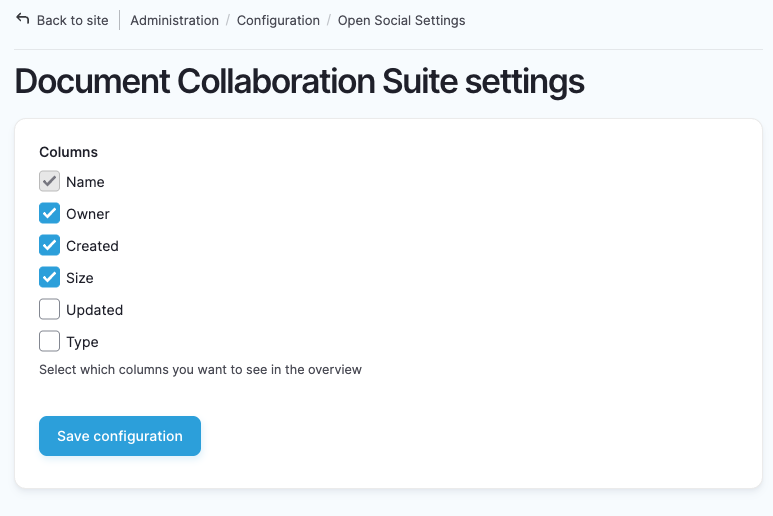
Site Managers can decide which information are most relevant to be displayed in the Files overview page.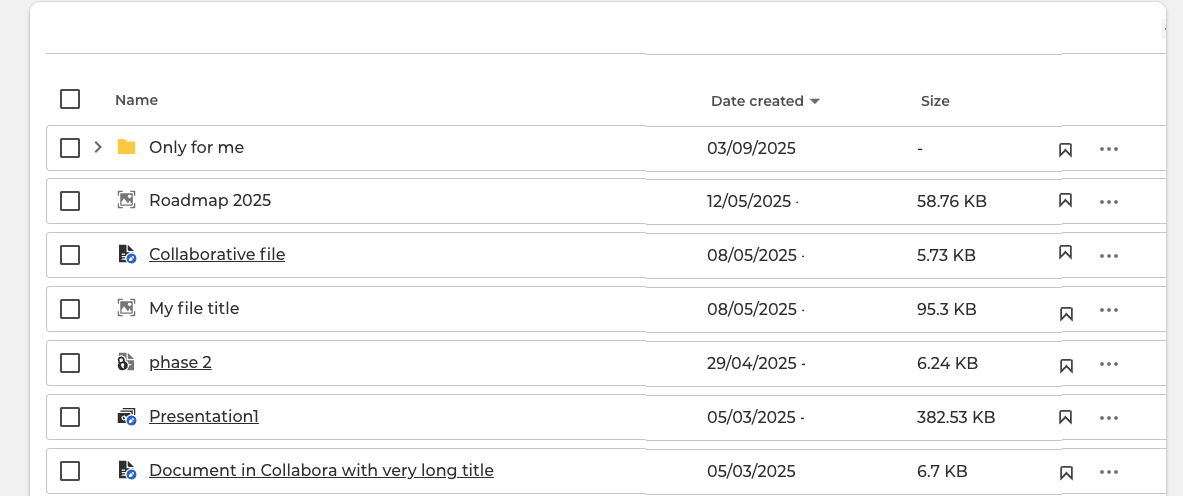
Coming Soon!!!
Bulk operations
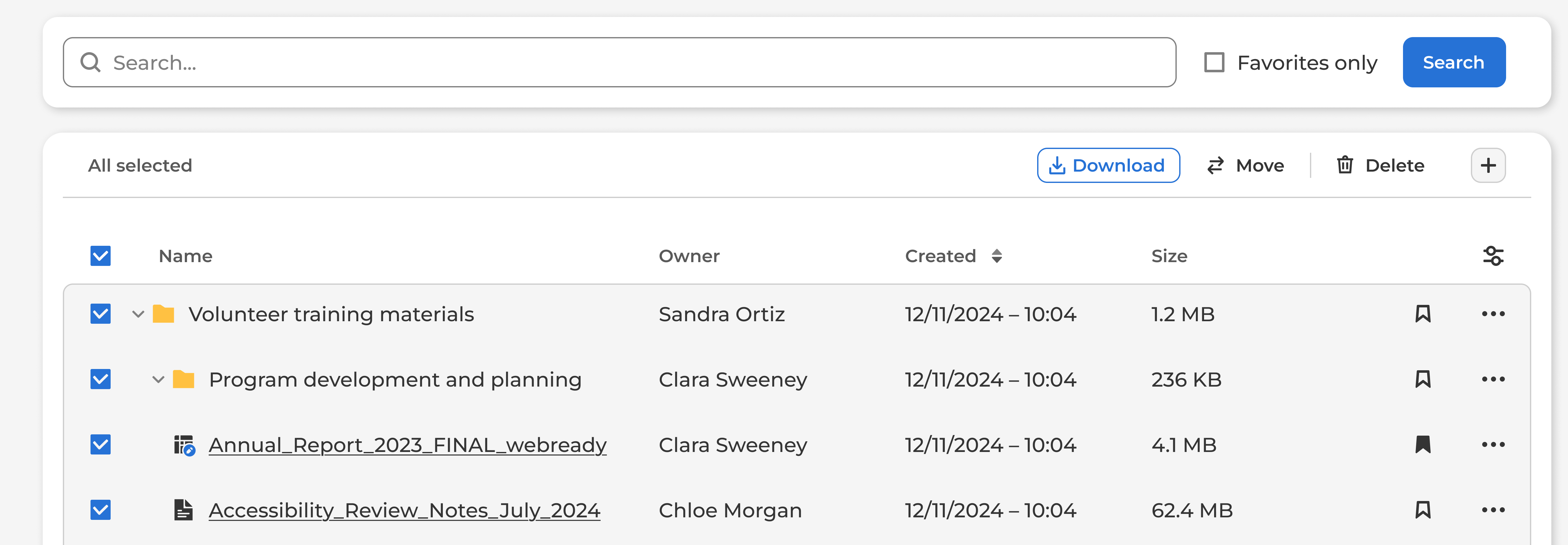
- Download of multiple folders from the Files overview page
- Deleted multiple files, folders or links with one action
- Move files, links and folders from one location to another within your group
Document Collaboration Suite - Real time collaboration
If your need is not only to upload and share files but also to collaborate on them with other group members without ever leaving your community, check out our Document Collaboration Suite - Real time collaboration add-on.
If you are interested in further developing the files & folders feature, contact your CSM!