


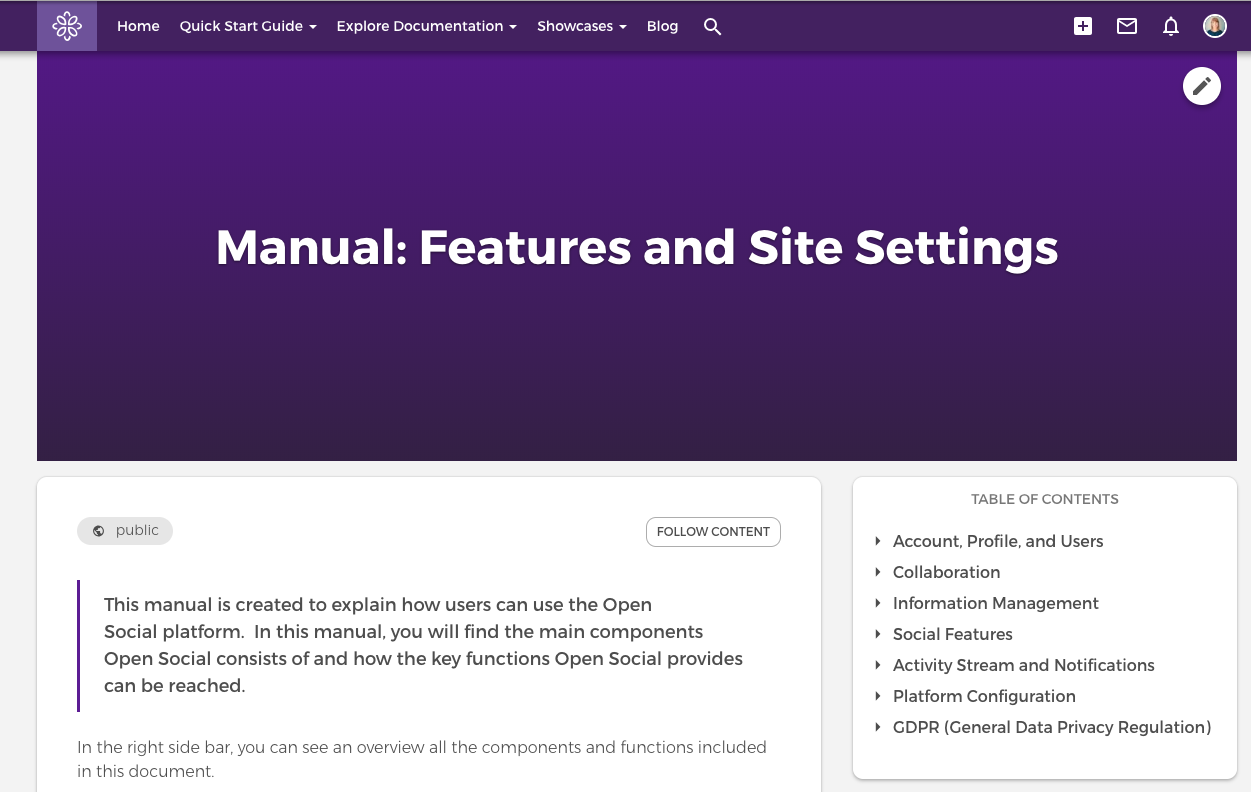
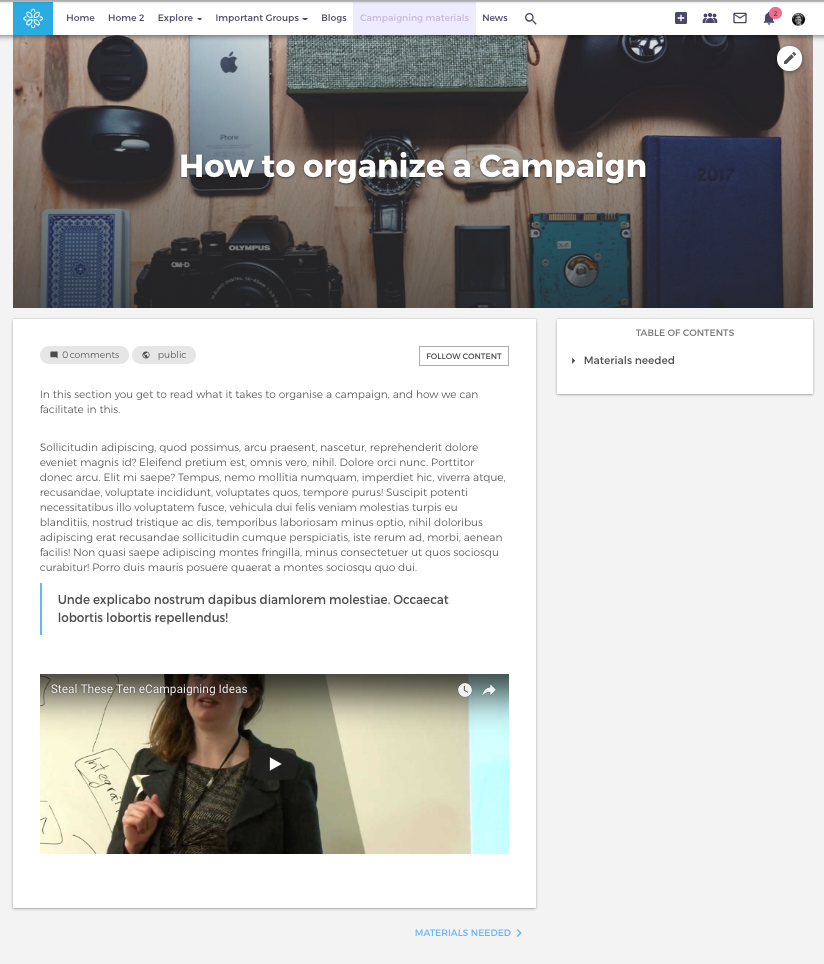
Content managers and site managers can create books. A book consists of multiple book pages which are organised in a hierarchical way. On each book page, you can see the structure of the book on the right. You can also use this structure to navigate between book pages.
This functionality can be used for different purposes:
- creating manuals (like the one you are reading right now 😁)
- a resource library/Wiki
The most important things are that this functionality comes with a table of content, verified users cannot create bookpages, and they do not appear in stream. We consider this content "static", in that it's informational, but not content that users actively engage with - although you can allow comments if you wish.
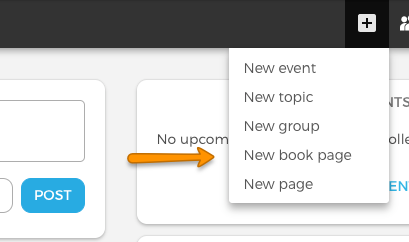
Book can be added via the '+' button in the header menu, or via the add content button in content overview page.
Once a book is created, it can be linked to the menu or other content to make it easily reachable. Books are not included in the Resource Library by default, but you can update that via your Resource Library Settings.
Creating Book Pages
Creating the book pages is straightforward, you can simply fill in the information required. All the same options are possible here as when creating a Topic, which is likely something you're familiar with already (if not, check out the guide here)
Book Outline & Contents
Further down, you can adjust the book outline, which is where you decide which book this page belongs to and where in the book it should appear. From the various dropdowns, you can choose the parent item for each page (the book, chapter or subchapter the page belongs to). The weight represents the order in the hierarchy. This will automatically be assigned in order of page creation, but you can always adjust the weight yourself to set a custom order.

💡TOP TIP: When creating a new book, it's important to note that the first page is there to act as the book cover. In practice this means it does not appear in the Table of Contents. Therefore, it's best to only provide introductory information on this page, saving the important info for the pages inside the book.
For an example, check out our Getting Started Guide do you see how the first page doesn't appear in the contents?