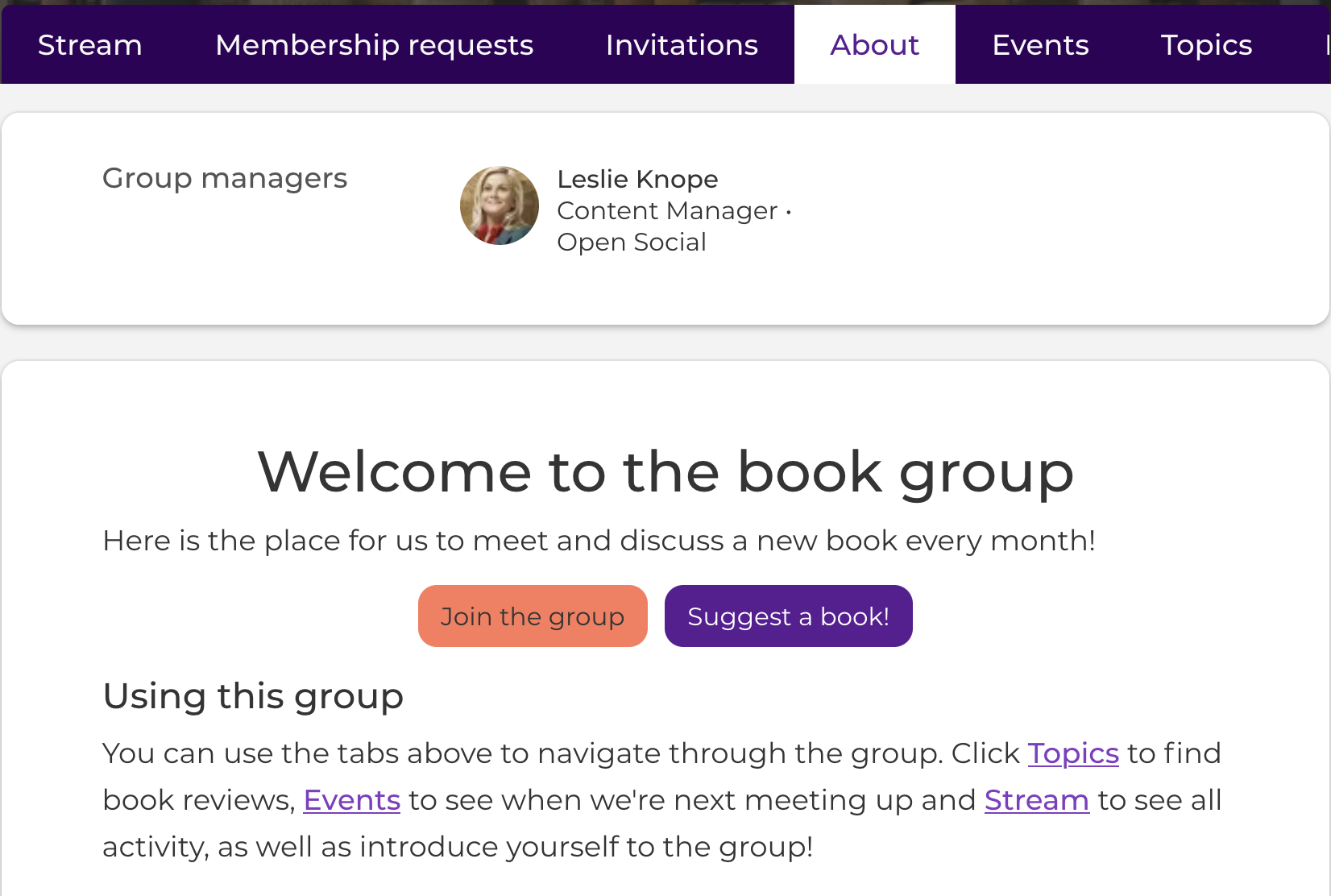

Open Social provides the possibility to use buttons for navigation. We have pre-set spaces for adding these buttons (hero call-to-action) but you can also make use of our source code capabilities to create your own.
This can be helpful for adding more than two buttons to a hero, or for creating a button in a topic, event or group. See some examples at the end of this page
How to create a button
To create a custom button, you will have to use the "source code" option in your text editor. Click this to start:
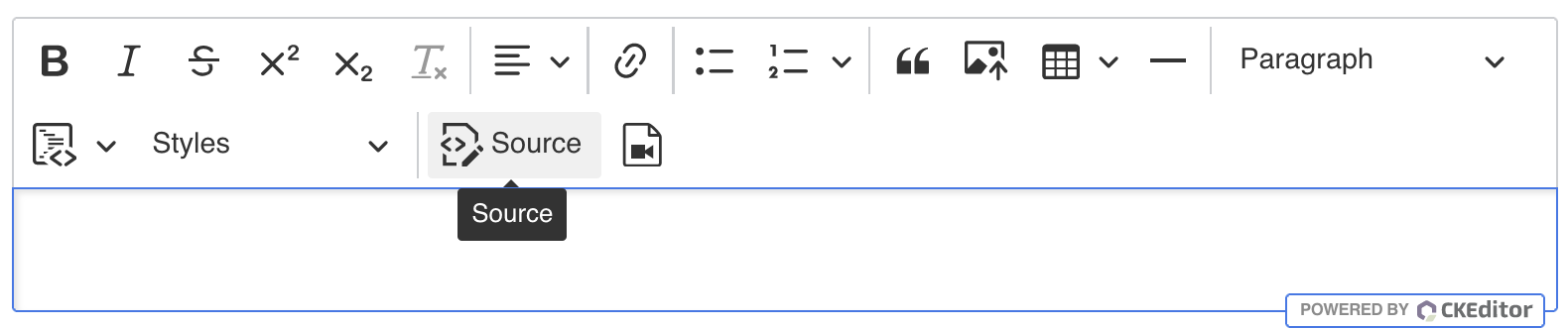
Next, you can find where you want to put the button (i.e. which text it should be between) and paste the following code:
<a href="/link-address" class="btn btn-primary">link label</a>- You can then update the code with the necessary variables:
/link-address is the link you're navigating to (this can be external or internal)
/class="bt btn-primary" is the CSS class of your button. You can change "primary" to your other platform colours which you have defined in your Color Scheme, namely Primary, Secondary and Accent.
link label is the text which will appear on the button
- For example, the code <a href="/home-logged-in" class="btn btn-accent">Take me home</a> would create the button below.
Take me home
- Once you've put in your source code, it's important to click the source button again to see what this looks like in text (this also saves the button).
- After that, you can play around with standard formatting, perhaps to move the button into the middle of the screen
Extra Tip: Large button
if you want to create a large button for extra attention you can also add the class 'btn-lg' to the classes.
More examples:
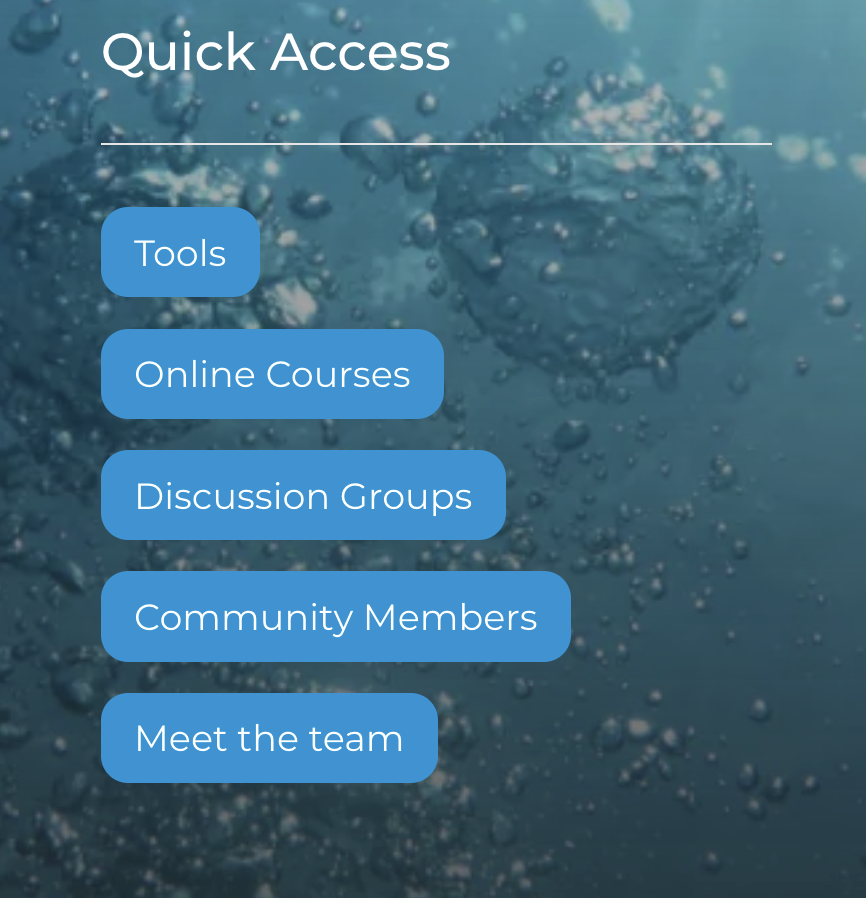
Extra hero call-to-action buttons:
Button in a Group Description: