

Engagement Studio manual›Channels›Creating an email
Emails are the most common message type in Channels. This page shows how to create one, from the details to the design.
Email details
Go to Channels > Emails > + New.
Select Triggered email if the email will be part of a campaign (recommended). For a one-off, manual send, select Segment email. Not sure? No problem: you can clone the email into the other type later without losing its formatting.
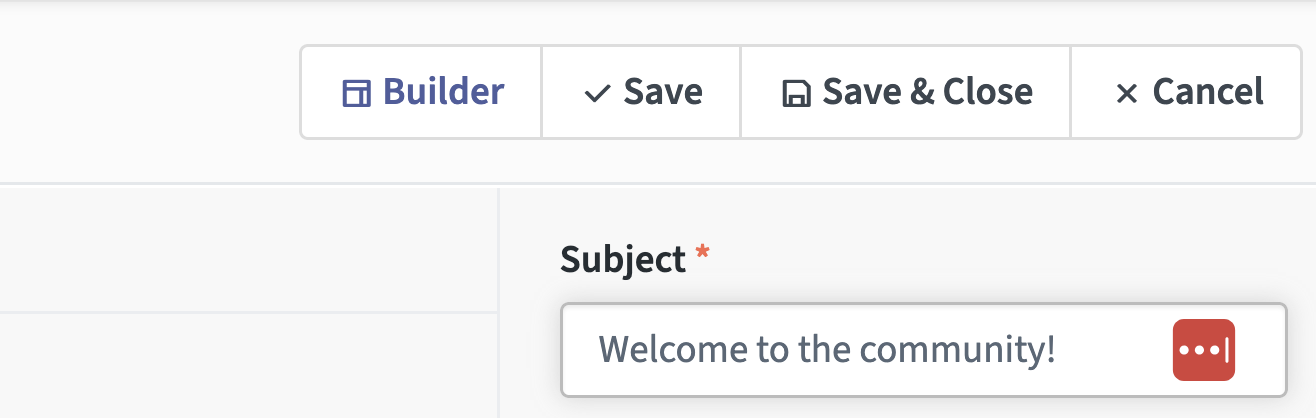
Use the fields on the right to add a subject line and an internal name. Under Advanced settings you can also set the From name, Reply-to email and so on. If you leave these empty, the email uses your general Engagement Studio settings.
Now save your work.
Building your email
Before you open the builder, choose one of the pre-built themes. They give you a good starting point and are fully customisable, so you get flexibility while knowing the email is correctly formatted and displays well in different email clients.
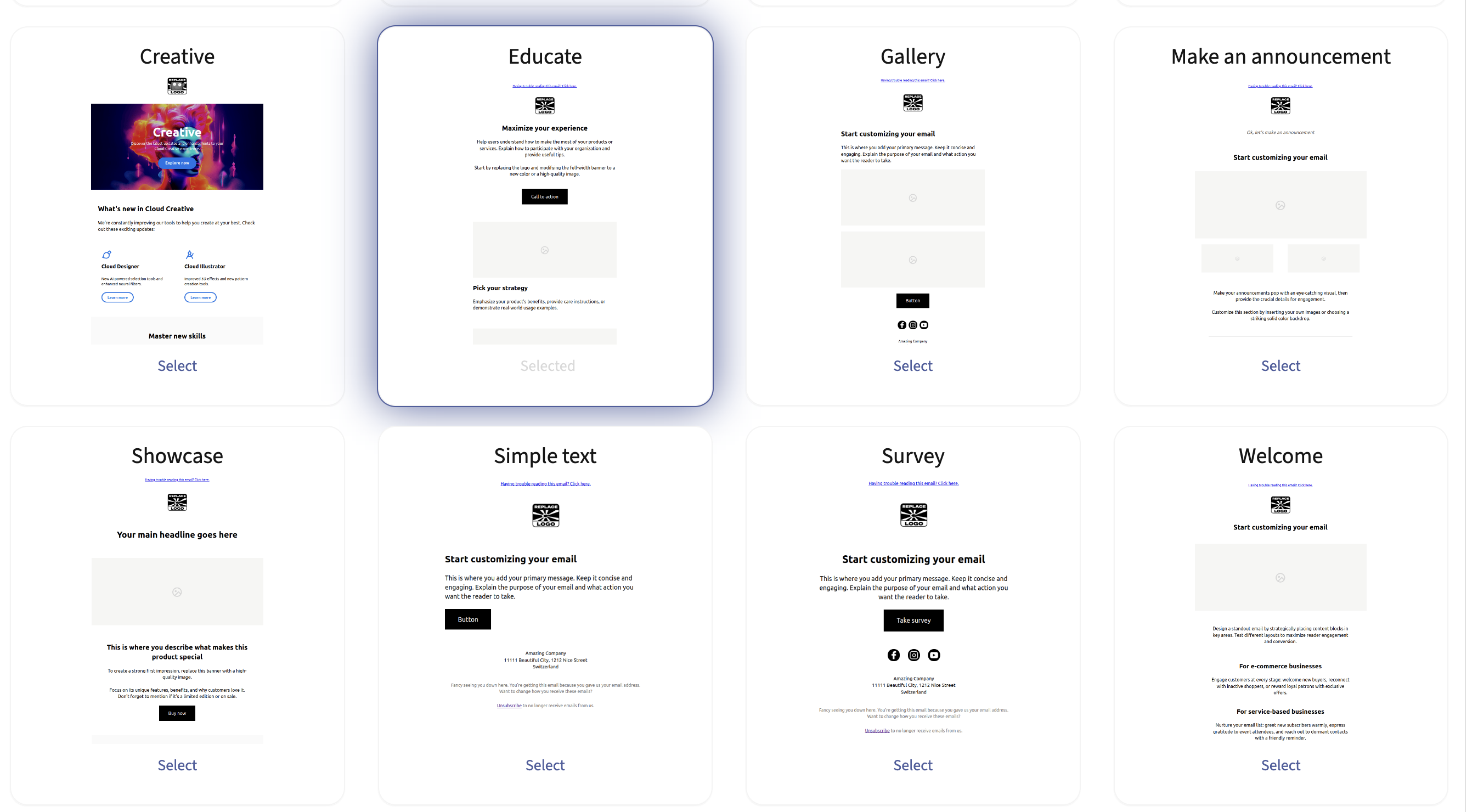
💡 Tip: you can't create your own themes yet, but you can clone a previous email and customise it, instead of starting from scratch every time. See Testing and managing emails at the end of this page.
The email builder
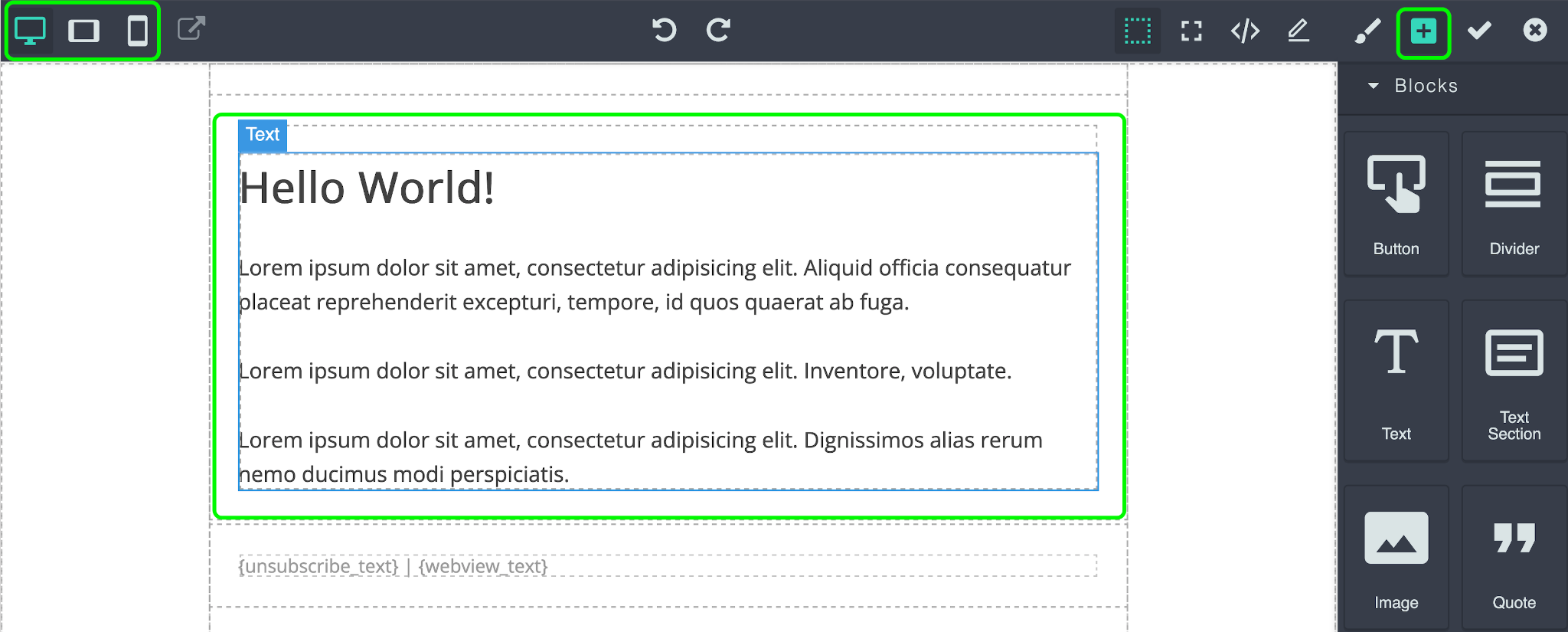
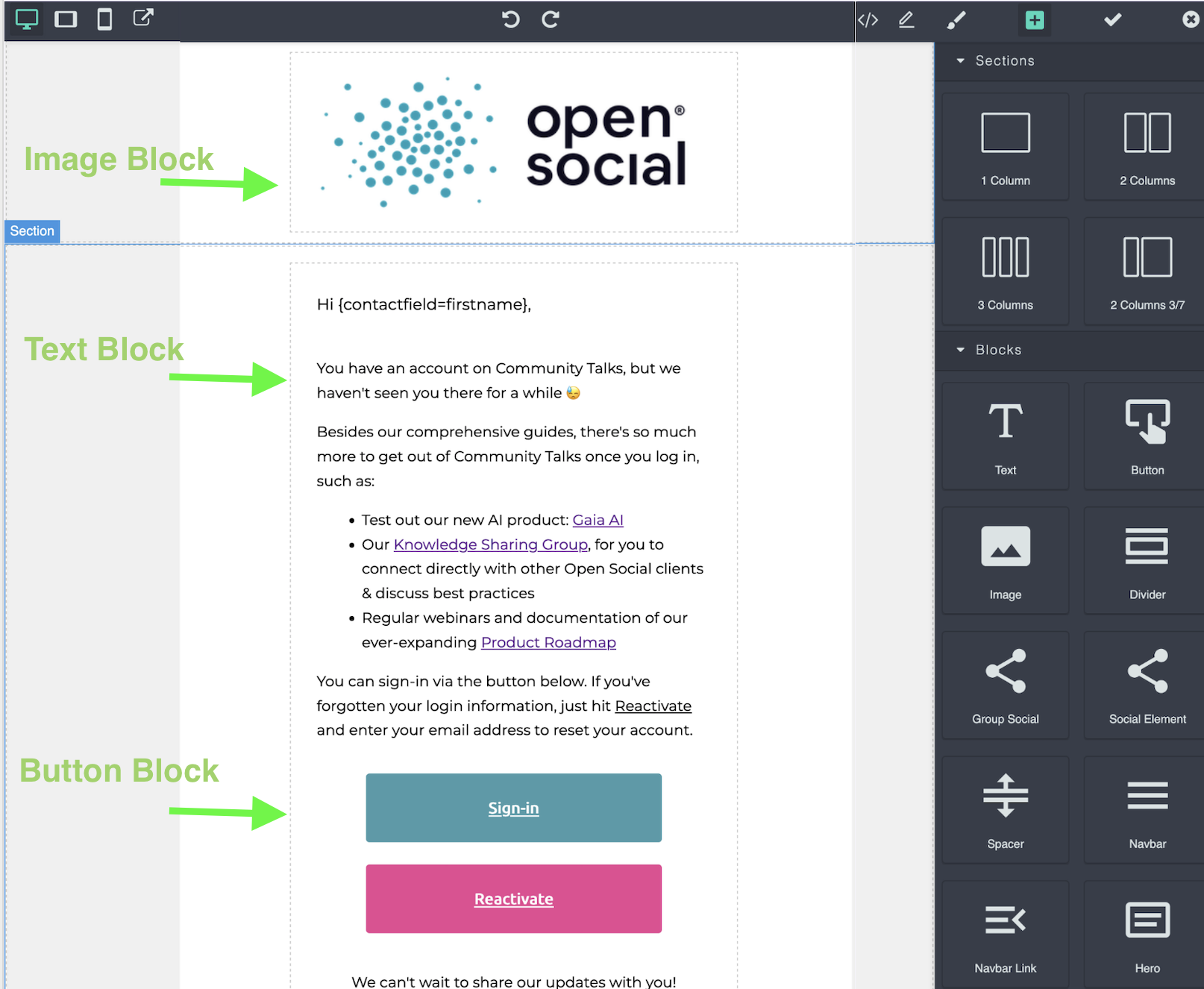
The email builder gives you many options to design, fill and preview your email:
- Top left: preview the email on desktop, mobile and so on.
- Top right: add blocks, such as text, images and buttons.
- Centre: double-click the content to edit text or other information.
These blocks are used most:
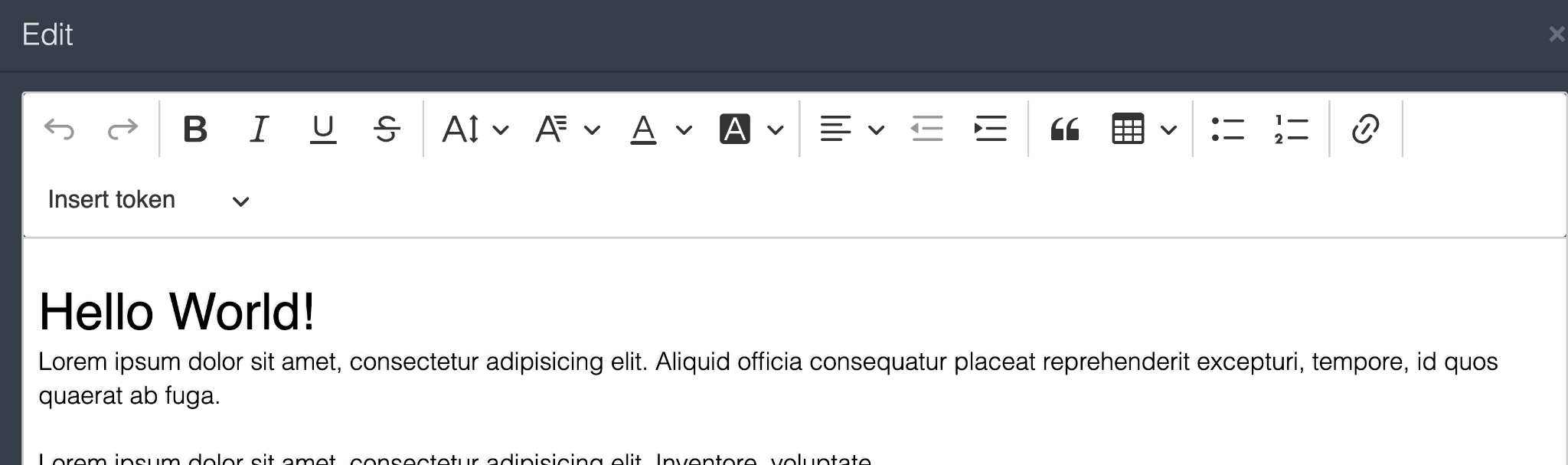
- Text: the easiest way to fill your email, with formatting options for bullet points, links and personalisation tokens.
- Image: useful for adding a logo banner directly to your email.
- Button: good for a clear call to action. After adding a button, you can set where it links to and how it looks, on the right-hand side.
- Hero: just like in the CMS, a hero lets you place a background image with a button on it.
For each block, click the  button to adjust:
- Settings: is it a button or a link? Add the link in the href field.
- Dimension: padding, size and so on of the text block, button or image.
- Typography: font, sizes and colours.
- Decoration: background colours, images (for heroes) and other design settings.
💡 Tip: you can get very creative, but emails can look different in different email clients and on different devices, and some clients block images at first. So start simple, with clear text and a clear call to action. Every email should have one clear goal for your member.
Many themes include two built-in tokens in the text. It's worth keeping or reusing them:
{unsubscribe_text}: adds the unsubscribe option. Members who use it no longer receive marketing emails.{webview_text}: adds a link at the top of the email to open it in a browser, in case images or text don't display properly.
Example email
Testing and managing emails
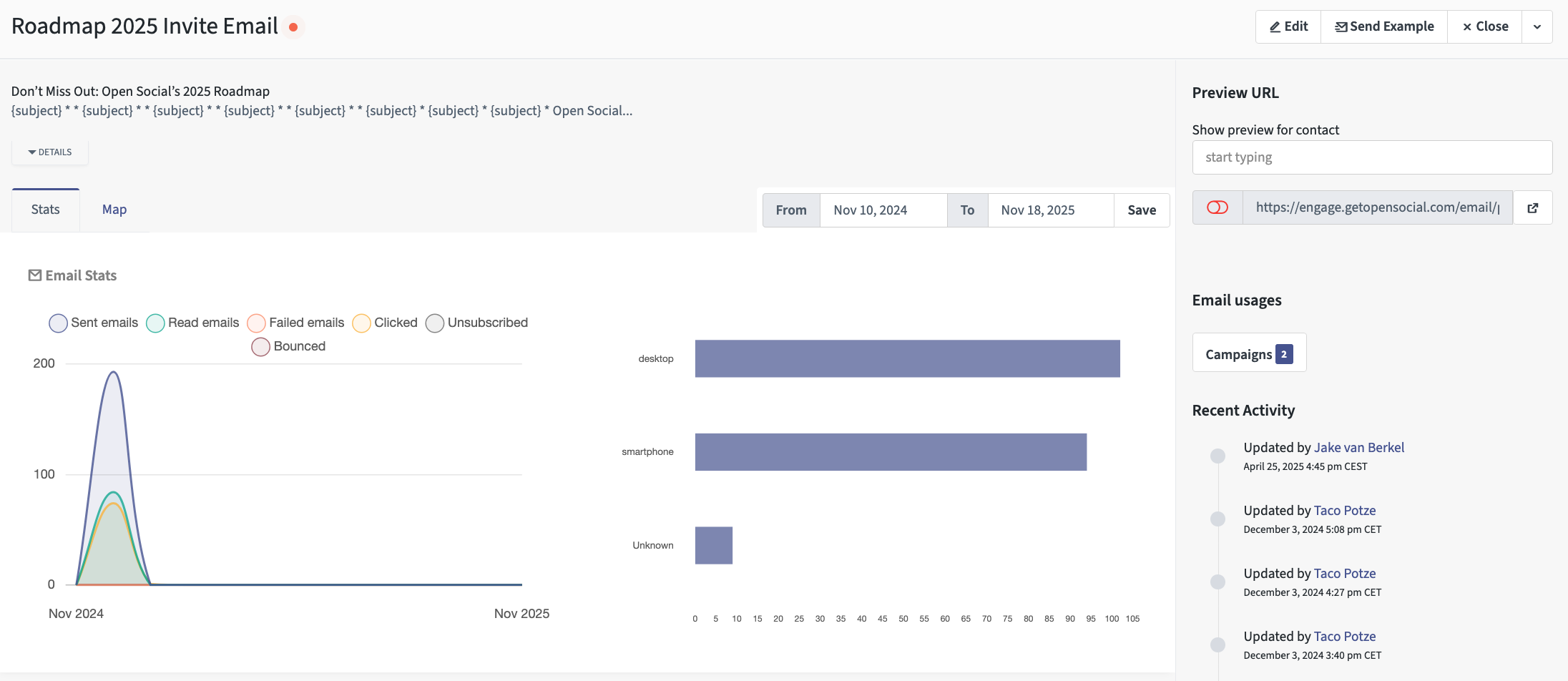
Once your email is created, you can edit it and see where it's used across Engagement Studio in the overview:
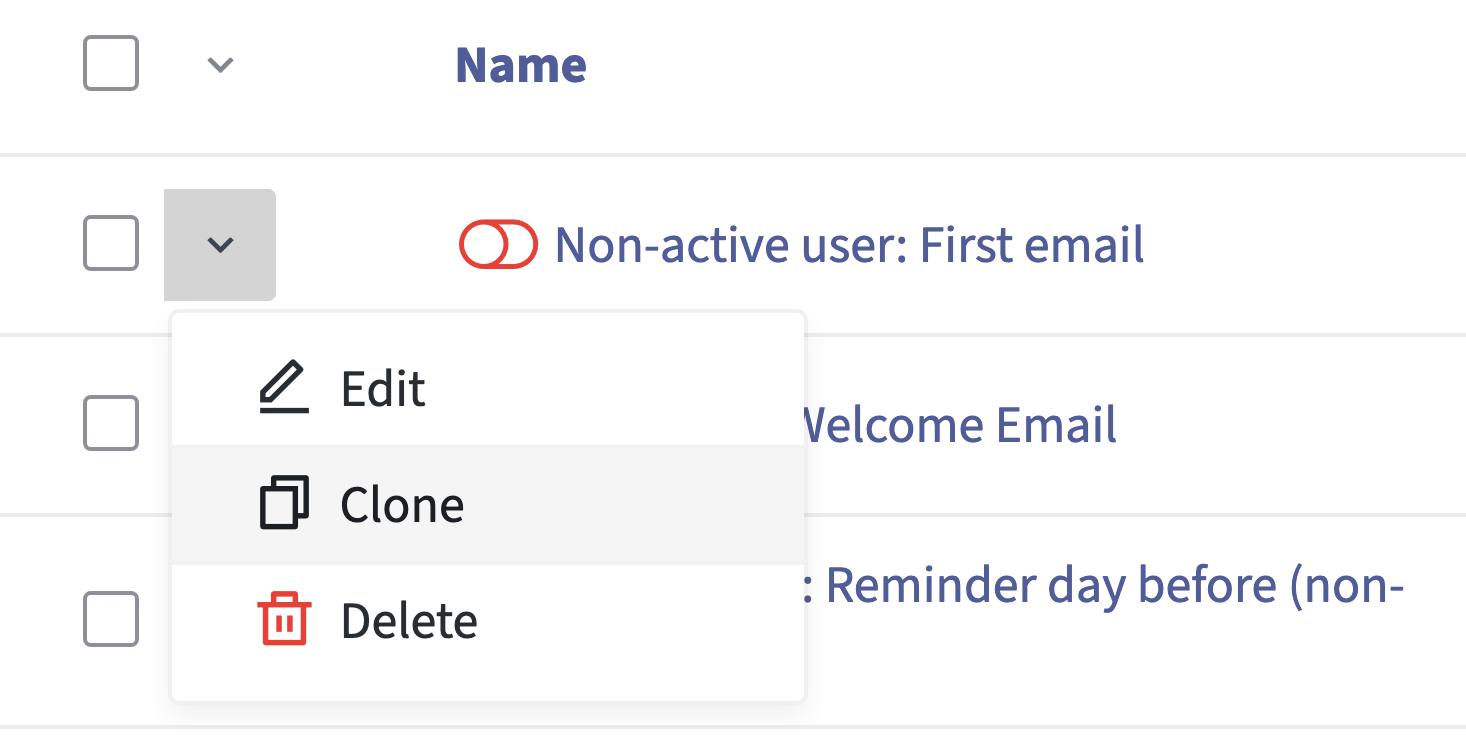
You can also easily duplicate an existing email, so next time you only need to change the content:
Your email is ready to use in a campaign: see Emails in campaigns.